




How to Make T-Shirts With Cricut: Step-by-Step Guide
 Published
 Updated
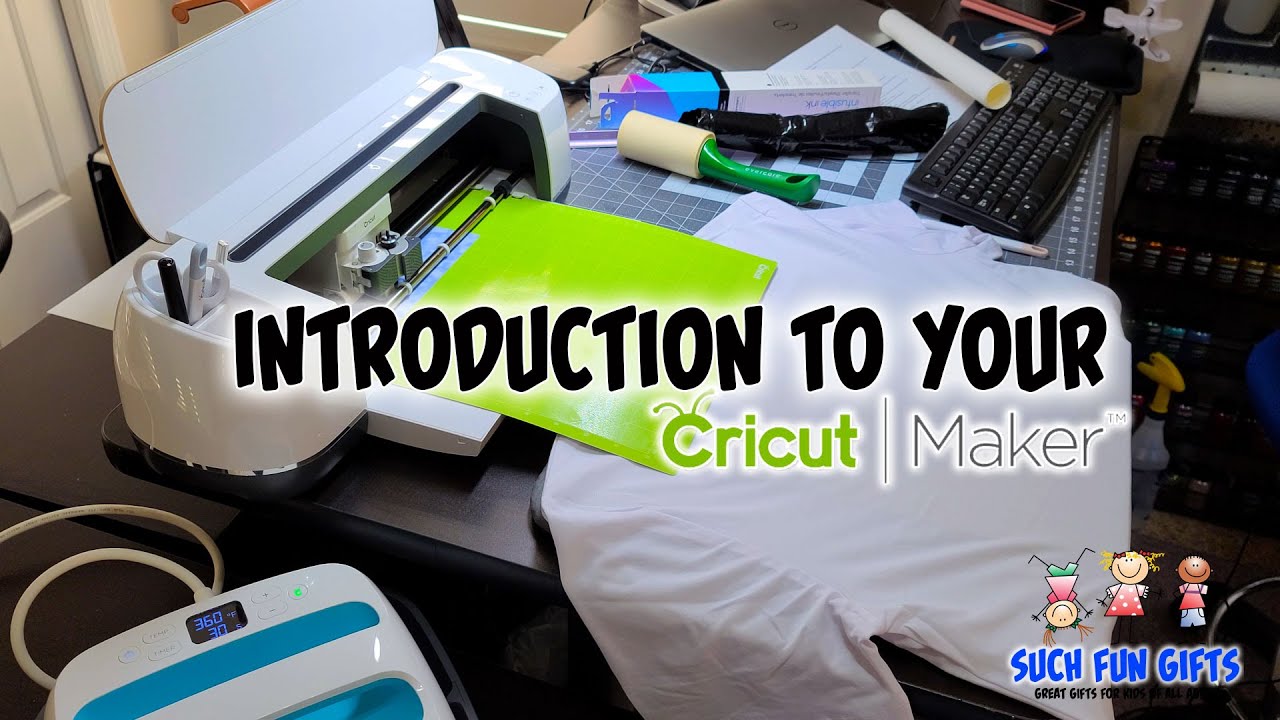
To make t-shirts with a Cricut, open Cricut Design Space, add your SVG design, size it to fit the shirt, mirror the image for heat transfer vinyl, cut the design, weed away the excess vinyl, then press it onto the shirt with a heat press or EasyPress at the temperature and time the vinyl recommends.
Custom apparel is one of the most rewarding projects you can make at home, and learning how to make t-shirts with Cricut machines opens the door to gifts, small-business products, and matching family outfits. This guide walks through the full process, from choosing materials to peeling back a finished design, so your first shirt comes out clean and your tenth looks professional. You do not need years of crafting experience, just a Cricut machine, the right vinyl, and a little patience. By the end you will understand each tool, each setting, and the small habits that keep designs from peeling after a few washes.
What you need before you start
Before you cut anything, gather your supplies. Having everything in reach keeps the workflow smooth and lowers the chance of mistakes once the machine is running. Here is the short list for making t-shirts with Cricut at home:
- A Cricut machine such as a Cricut Explore, Maker, or Joy.
- Heat transfer vinyl (HTV), also sold as iron-on vinyl, in the colors you want.
- A cutting mat (the standard green StandardGrip mat works well for HTV).
- A weeding tool for removing excess vinyl.
- A heat source, either a Cricut EasyPress, a household iron, or a heat press.
- A blank t-shirt, ideally cotton or a cotton-poly blend.
- A design file, such as a ready-made SVG, plus a computer or phone running Cricut Design Space.
Quality blanks and quality vinyl matter more than beginners expect. A soft, well-woven shirt holds a pressed design better and feels nicer to wear, while cheap vinyl can crack or peel after a few washes. A small protective sheet, such as parchment paper or a thin cotton cloth, is also worth keeping nearby to shield the design during the final press. Prewashing the shirt without fabric softener helps the vinyl grip a clean surface. If you want designs that are already cut-ready, browse the SVG DROP cut files library and download a file that suits your project.
How do you make a shirt with a Cricut step by step?
You make a shirt with a Cricut by designing or importing your artwork in Design Space, mirroring it, cutting it from heat transfer vinyl, weeding the excess, and pressing it onto the fabric. The full sequence below covers each stage in order so nothing gets skipped.
- Design or import your artwork. Open Cricut Design Space, start a new project, and either create text and shapes or upload an SVG file. Size the design to fit the shirt area, usually around 9 to 11 inches wide for an adult chest print.
- Set the material and mirror the design. Select your iron-on or heat transfer vinyl as the material. This is the step most beginners forget: turn on the Mirror toggle for every mat that uses HTV, because the design is cut from the back of the vinyl and must be reversed.
- Cut the vinyl. Place the heat transfer vinyl on the mat with the shiny carrier sheet facing down and the matte side facing up. Load the mat and let the machine cut. A test cut on a scrap piece confirms your settings before you commit the full sheet.
- Weed the design. Use a weeding tool to remove all the vinyl you do not want, leaving only the design stuck to its clear carrier sheet. Work slowly around small letters and thin lines so you do not lift the parts you want to keep.
- Press it onto the shirt. Preheat the shirt for a few seconds to remove moisture and wrinkles, position the design, then apply heat and firm pressure for the time the vinyl brand specifies. Peel the carrier sheet warm or cool depending on the product instructions.
Once pressed, lay the shirt flat and let it cool fully before wearing or folding. Cooling sets the adhesive and helps the design bond for the long term. If you are layering more than one vinyl color, press each layer briefly and add the next on top, saving the full press for the final layer so the lower colors do not over-heat.
What kind of vinyl do you use for t-shirts?
For t-shirts you use heat transfer vinyl, often labeled iron-on vinyl, not adhesive vinyl. Adhesive vinyl is made for hard surfaces like mugs, laptops, and tumblers, while heat transfer vinyl is engineered to bond with fabric under heat and survive repeated washing. Choosing the correct type is the single most important material decision for apparel, and mixing the two is one of the fastest ways to ruin a project.
Within heat transfer vinyl there are several finishes. Standard or everyday HTV is the most affordable and works for most designs. Glitter HTV adds sparkle and texture, holographic and foil add shine, and stretch HTV flexes with athletic fabrics. Printable HTV lets you run full-color designs through an inkjet printer before cutting. If you want a deeper technical overview, the heat transfer vinyl reference explains how the material is constructed and applied.
Cotton, polyester, and blends
Most heat transfer vinyl bonds beautifully with 100 percent cotton and with cotton-poly blends. Pure polyester and performance fabrics need lower temperatures, so always check the vinyl maker’s settings for the fabric you are using. Pressing polyester too hot can scorch the shirt or leave a shiny press mark, so when in doubt, start cooler and add time rather than heat. Tri-blend and rayon shirts also prefer gentler settings, and a quick test on the inside hem can save an expensive blank.
Why mirroring matters
Mirroring is the step that separates a clean shirt from a wasted sheet of vinyl. Because you cut heat transfer vinyl face down on the carrier sheet, the design has to be flipped horizontally before cutting so it reads correctly once it is pressed onto the shirt. Skip mirroring and your text comes out backwards.
In Cricut Design Space, the Mirror option appears on the Make It screen, and you toggle it on for each mat individually. Build a habit of double-checking the preview before every cut. If the letters on screen look reversed, you are ready to cut; if they read normally, mirror is still off. This single check prevents the most common and most frustrating beginner error.
Heat settings and pressing tips
Getting the heat right is where many first projects succeed or fail. Every vinyl brand publishes its own time, temperature, and pressure chart, and following it precisely gives the most reliable results. Cricut’s own help center includes a heat guide that matches EasyPress settings to specific materials and base fabrics.
- Preheat the fabric. A quick 5-second press removes moisture and wrinkles so the vinyl makes full contact.
- Use firm, even pressure. A flat, hard surface works better than an ironing board, which can cushion and weaken the bond.
- Respect peel instructions. Some vinyl is a warm peel and some is a cool peel; peeling at the wrong moment can lift the design.
- Add a second press. After peeling, cover the design with a protective sheet or thin towel and press again briefly to lock it in.
If a corner lifts after pressing, simply cover it and reapply heat. Heat transfer vinyl is forgiving, and a short re-press usually fixes adhesion problems without harming the shirt.
Common mistakes to avoid
Most failed shirts trace back to a handful of repeat errors, and once you know them they are easy to sidestep. Keep this short list in mind every time you start a new project:
- Forgetting to mirror. Always confirm the design looks reversed on the Make It screen before cutting iron-on vinyl.
- Cutting on the wrong side. Heat transfer vinyl goes shiny side down on the mat, so the blade cuts the matte color layer, not the carrier.
- Using too little pressure. Light pressure is a leading cause of peeling. Lean your body weight into the press for the full time.
- Skipping the test cut. A quick test on scrap vinyl confirms your blade depth and material setting before you waste a full sheet.
- Washing too soon. Give the adhesive a full day to cure before the first wash.
Caring for your finished t-shirt
Proper care keeps a pressed design looking crisp for years. Wait at least 24 hours before the first wash so the adhesive cures completely. Turn the shirt inside out, wash in cold water on a gentle cycle, and avoid harsh detergents or bleach. Tumble dry low or hang dry, and never iron directly over the vinyl, since direct contact can melt or distort it. Following these steps means your custom shirt survives the laundry as well as it looked on day one, whether you made one for yourself or a whole batch to sell.
About SVG DROP: SVG DROP is a digital cut-file shop offering thousands of ready-to-use SVG and PNG designs for Cricut, Silhouette, and other cutting machines. Every file is tested for clean cuts, and crafters of all levels use our library for t-shirts, mugs, decals, and home decor projects. Explore the full catalog or reach out anytime through our help resources.
Frequently asked questions
Do you have to mirror images when using a Cricut for shirts?
Yes. Whenever you cut heat transfer vinyl, you must mirror the design before cutting because the vinyl is cut face down on its carrier sheet. If you forget to mirror, the design will press onto the shirt backwards. Adhesive vinyl projects on hard surfaces do not need mirroring.
Can I use a regular iron instead of a Cricut EasyPress?
Yes, a household iron can work for small projects, but results are less consistent. An iron has uneven heat zones and lower, harder-to-control temperatures, so designs may lift over time. For best durability, use a Cricut EasyPress or a heat press that holds a steady, even temperature and firm pressure.
What size should a design be on an adult t-shirt?
A standard adult chest print is usually around 9 to 11 inches wide, centered roughly 3 inches below the collar. Pocket-style designs run about 3 to 4 inches. Always size the design in Design Space against the shirt before cutting, and check our FAQ for more sizing and material guidance.
How long does Cricut iron-on last on a shirt?
A properly pressed heat transfer vinyl design can last for years and survive 50 or more washes when applied with correct heat, time, and pressure. Durability drops sharply if the design was under-pressed, washed too soon, or dried on high heat. Following the care steps above gives the longest-lasting result.