



How to Add Fonts to Canva: Upload, Fix and Use Them
 Published
 Updated

You add fonts to Canva by uploading an OTF, TTF or WOFF file into a Brand Kit, after which the font appears in the text font list on every design in that kit. Knowing how to add fonts to Canva only helps on a paid plan, because free accounts have no upload option at all.
That second sentence is the part most tutorials skip, and it is the reason a lot of people spend twenty minutes hunting for an upload button that is not there. Canva restricts custom font upload to its paid tiers. If you are on the free plan, no menu path, browser trick or file format will produce the option.
What follows covers how to add fonts to Canva on desktop and mobile, the file rules that cause most failures, what to do on a free account, and the licensing question that quietly sits underneath all of it. Crafters usually arrive here holding a font file they bought or downloaded with a cut file set, which brings its own wrinkle covered below.
What Canva Accepts, Exactly
Canva publishes its font rules rather than leaving you to guess, and knowing them in advance saves the upload error loop.
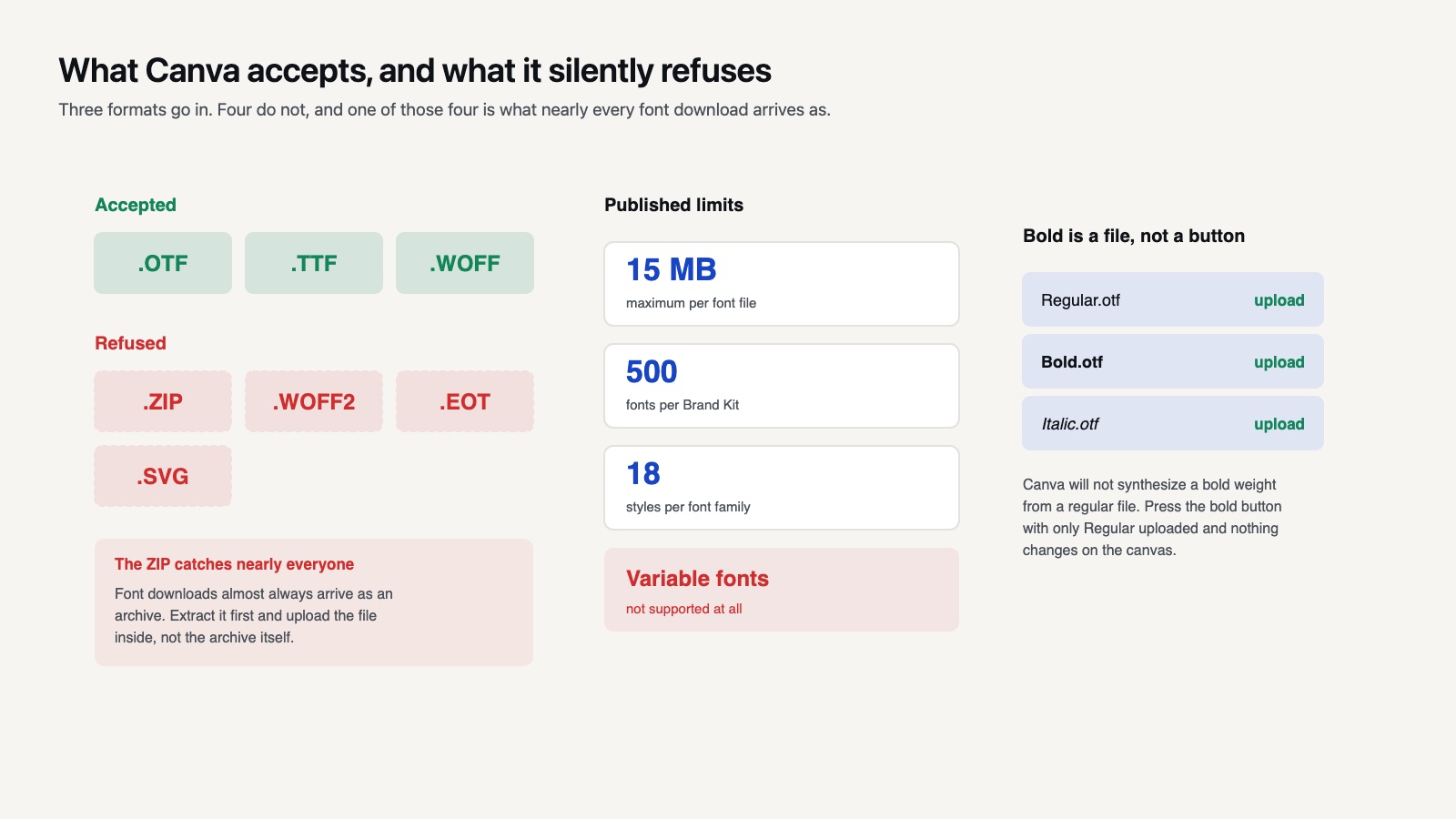
Accepted formats are OTF, TTF and WOFF. Canva does not accept ZIP, EOT, SVG or WOFF2 files. That first exclusion catches nearly everyone, because font downloads almost always arrive as a ZIP archive. You have to extract the archive first and upload the font file inside it, not the archive itself. If you are not sure how to open one, the download and unzip walkthrough covers it for both Windows and Mac.
The other limits published on the Canva font upload help page are worth writing down: each file must be under 15 MB, a Brand Kit holds a maximum of 500 fonts, and a single font family can carry up to 18 styles. Variable fonts are not supported at all.
📐 Technical Note
Bold and italic are separate files, not a button. Canva will not synthesize a bold weight from a regular file, so if you upload only Regular and then press the bold button, nothing changes. Upload Regular, Bold and Italic as three uploads inside the same family and Canva links them.
How Do You Upload a Font to Canva on Desktop?
The path for how to add fonts to Canva runs through the Brand area rather than the design editor, which is why it is hard to find from inside a project.
From the Canva homepage, open the left hand menu and select Brand, then Brand Hub. Scroll to the Brand Fonts section and choose Upload a font. Pick your extracted OTF or TTF file and confirm. Canva runs a license check during upload, then adds the font to that Brand Kit.
Canva names the section Brand Fonts rather than Uploaded Fonts, which is another reason the search inside the app rarely finds it. The brand fonts help page describes the same path with screenshots if the menu has moved again by the time you read this.
The font now appears in the font dropdown of any design, grouped at the top under your brand name rather than mixed into the alphabetical list. If you have several Brand Kits, the font belongs only to the one you uploaded it into. This trips up people who organize client work into separate kits and then wonder why a font vanished.
Uploading from the Canva mobile app
Tap the menu icon at the top left, choose Brand from the side panel, then Brand Kit. The upload flow from there mirrors the desktop version, with one practical difference: you have to get the font file onto the phone first, which usually means saving it from email or a cloud folder into Files or Drive.
Fonts uploaded on desktop show up in the mobile app automatically once the app syncs, so the simplest route is to upload on a computer and never touch the phone flow at all.
Why Your Font Upload Failed
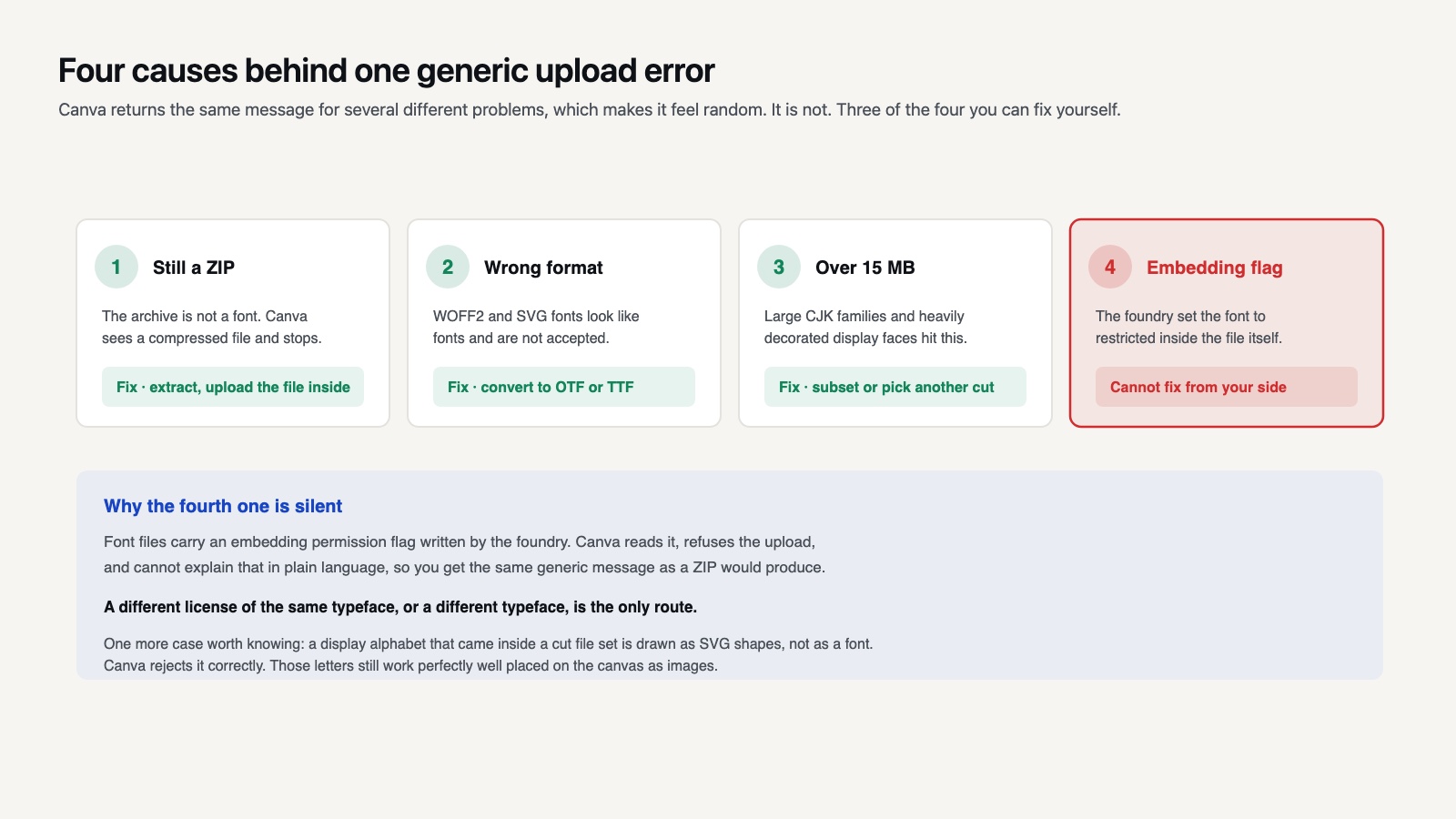
Canva returns a single generic error for several different problems, which makes troubleshooting feel random. It is not. Four causes account for almost all of it.
The file is still a ZIP. Extract it. The file is a WOFF2 or an SVG font, which look like fonts and are not accepted. Convert to OTF or TTF. The file is over 15 MB, which happens with large CJK or heavily decorated display families. Or the font is not licensed for embedding.
That last one deserves attention because it is silent. Font files carry an embedding permission flag inside them, set by the foundry. If it is set to restricted, Canva refuses the upload and cannot tell you why in plain language. Canva’s font upload error page lists the checks in order, and the embedding flag is the one you cannot fix from your side. A different license of the same font, or a different font, is the only route.
⚠️ Common Mistake to Avoid
Uploading a font file that came bundled inside an SVG cut file download. Cut file sets sometimes include a display alphabet drawn as vector letters, not as an installable font. Those are SVG shapes and Canva will reject them as fonts, correctly. They still work perfectly well as images placed on the canvas.

Can You Add Fonts to Canva Without Pro?
Not inside Canva, no. Custom font upload has no free tier path, and the workarounds circulating online either describe an older interface or quietly assume a trial. Knowing how to add fonts to Canva does not help until the plan does.
Three legitimate alternatives exist. The first is to find a close match among the fonts Canva already ships, which number in the thousands and include most of the Google Fonts library. Our font tutorials section lists the closest free alternatives we have found for the display faces crafters ask about most. For a lot of craft projects the difference between a licensed display font and a good match is invisible at sticker size.
The second is to set the text somewhere else and bring it in as an image. Any free design tool will let you type in an installed font and export a transparent PNG, which uploads to Canva like any other graphic. You lose editability, which matters if you are producing twenty name variations and does not matter if you are producing one.
The third is to skip Canva for that step. If the design is destined for a cutting machine anyway, typing the text in Design Space or Silhouette Studio with the font installed on your computer is fewer steps than routing it through Canva. Both read your system fonts directly, and the same applies to Silhouette Studio, as the Cameo beginner guide shows. The Cricut side is covered in the Design Space guide.
💡 Pro Tip
Upload the font to Canva and install it on your computer at the same time. You will almost always need it in both places: Canva for the mockup and product photo, and your cutting software for the file that actually gets cut. Doing it in one sitting avoids the hunt for the file three weeks later.
Character and Brand Fonts: the Part That Bites
A large share of font searches are for fonts tied to a film, a show, a game or a company. People want the Disney script, the Harry Potter lettering, the Barbie logo face. Canva will happily display whatever you upload, and that is exactly where crafters get into trouble.
Logos, wordmarks and the characters they represent are protected by copyright and trademark law, and those protections do not disappear because a lookalike font file is freely downloadable. A font that imitates a studio wordmark is a separate work from the wordmark itself, and using it for a personal birthday banner is not the same permission as putting it on a product listing. Whether a given use is allowed depends on what you make, whether you sell it, and how closely it reads as the original brand. Checking before you list is the seller’s responsibility, not the file supplier’s. The US Copyright Office overview is a reasonable starting point, and trademark questions sit with the USPTO.
Practically, this means treating brand adjacent fonts as personal use unless you have written permission. Our own font posts, including the Disney style font walkthrough and the Barbie font guide, carry the same caution for the same reason.
📌 Did You Know?
In the United States, typeface designs themselves are not protected by copyright, but the font software that renders them is. That is why lookalike fonts of famous logos can be distributed legally while the logo they imitate stays protected. The distinction is between the shapes and the file, and it explains a lot of confusing advice online.
Organizing Fonts Once You Have Several
The 500 font ceiling sounds generous until you buy your third bundle. Two habits keep a Brand Kit usable.
Name families before you upload. Canva reads the family name from inside the file, and a lot of free fonts carry names like “Untitled1” or the designer’s working label. Renaming the file does not change this; the name is embedded. You can rename the family inside Canva after upload, and doing it immediately is much faster than finding it among four hundred entries later.
Use separate Brand Kits as categories rather than clients. A kit for script fonts, a kit for display and novelty faces, and a kit for the plain workhorses will serve a craft shop better than one enormous list. Switching kits takes two clicks and the font dropdown becomes navigable again.
For cut file work specifically, keep a note of which fonts in your library are single weight display faces. Those are the ones that look excellent at heading size and fall apart when cut small in vinyl, and it is worth knowing before you set a design rather than after the blade has told you. Our cartoon font sets ship as cut ready SVG alphabets precisely to sidestep that problem, since the letterforms are already drawn for a blade rather than a screen.
From Canva to a Cutting Machine
Canva is a layout tool, not a cut file editor, and the handoff between the two is where projects lose an afternoon.
Canva can export SVG on paid plans, but the SVG it produces is built for display rather than for a blade. Text is frequently exported as outlines, which is what you want, yet overlapping letters stay overlapping instead of merging into a single path. Send that straight to a cutter and the blade traces every hidden internal edge, slicing through the middle of a script word where the letters touch.
The fix is to weld or union the letters after import, in Design Space or Silhouette Studio rather than in Canva. Layer handling is the same skill as grouping and attaching objects, and it is worth getting right once. Canva has no weld function and is not going to gain one, because nothing in a printed design needs it.
For anything that will be cut rather than printed, the shorter route is to skip the round trip. Set the text in your cutting software, weld it there, and use Canva only for the listing photo and the social post. Trying to make one tool do both jobs is how a clean design arrives at the mat with forty stray cut lines in it.

Wrapping Up
Quick Recap:
- Font upload needs a paid Canva plan, and there is no free workaround inside the app.
- Upload OTF, TTF or WOFF only, extracted from the ZIP, under 15 MB, through Brand then Brand Hub.
- Bold and italic are separate uploads, and a restricted embedding flag will block the file with a generic error.
- Brand and character fonts stay protected whatever file you hold, so check the license before anything gets sold.
Frequently Asked Questions
Where are uploaded fonts stored in Canva?
They live in the Brand Kit you uploaded them to, not in your general uploads. In a design they appear at the top of the font dropdown under your brand name. If you cannot find a font you know you uploaded, you are probably in a design assigned to a different Brand Kit.
Can I use an uploaded font on a Canva design I sell?
That depends entirely on the font license, not on Canva. A font sold with a commercial license can be used commercially; a font marked personal use only cannot, and uploading it to Canva changes nothing about that. Read the license file that came with the download.
Why does my font look different in Canva than on my computer?
Usually because Canva is falling back to a default face for characters the uploaded file does not contain. Many free display fonts include capitals and numerals only. Type a lowercase string and a punctuation mark as a test, and if either changes appearance, the font is incomplete rather than broken.
Do I have to upload a font again for each Brand Kit?
Yes. Fonts are held per Brand Kit, so a font you want available in three kits gets uploaded three times. Each copy counts against that kit’s 500 font limit separately.