



How to Use Cricut for the First Time: A Beginner Guide
 Published
 Updated

Learning how to use Cricut for the first time means unboxing the machine, connecting it to Design Space, loading your material on a cutting mat, and sending a simple project to cut. Most beginners finish their very first cut within an hour, and the process gets faster with every project after that.
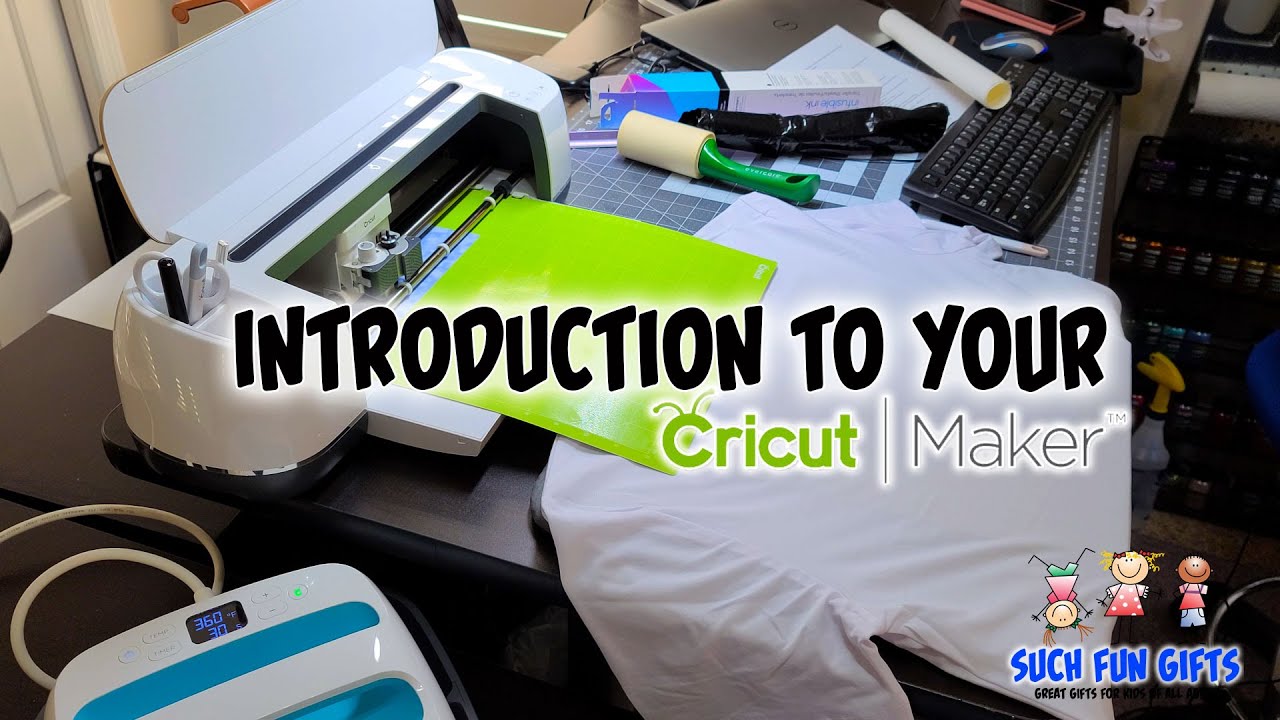
Opening a new Cricut box can feel like staring at a small spaceship. There are dials, mats, blades, and an app you have never touched. The good news is that the machine does most of the heavy lifting once it is set up. This guide walks through every step from the moment you slice the tape on the box to the moment you peel your first cut design off the mat. Whether you bought a Cricut Explore, Maker, or Joy, the core workflow is the same.
How to use Cricut for the first time: the full setup
The fastest way to learn how to use Cricut for the first time is to follow the order the machine expects: hardware first, software second, material third, cut last. Skipping ahead is the most common reason a first project goes wrong, so resist the urge to load a mat before the app is ready.
- Unbox and check the parts. Remove the machine, power adapter, USB cable, the starter blade already housed inside, a cutting mat, and the welcome card. Keep the foam inserts in case you ever move the machine.
- Set up the hardware. Place the Cricut on a flat surface with at least 10 inches of clearance front and back so the mat can roll through. Plug in the power adapter and press the power button.
- Install the app or software. Download Design Space from design.cricut.com on a computer, or grab the Design Space app on iOS or Android. Create a free Cricut account and connect the machine by USB or Bluetooth when prompted.
- Run the guided first project. Design Space opens a “New Machine Setup” flow that prints a test cut for you. Follow it once. It confirms the blade, the connection, and the cut pressure are all working together.
- Pick your material and set the dial. Start with plain vinyl or cardstock. On Explore machines turn the Smart Set dial to the matching material; on Maker and Joy you choose the material inside Design Space.
- Load the mat and cut. Press the items onto a clean mat, slide the mat under the guides, tap the flashing load arrow, then press the flashing Cricut button to start cutting.
Which Cricut model are you starting with?
The setup steps are nearly identical across the lineup, but a few details change. The Cricut Joy and Joy Xtreme are compact, cut from Smart Materials without a mat for long projects, and are controlled entirely from the app. The Cricut Explore 3 and Explore Air 2 use the Smart Set dial on the machine and cut more than 100 everyday materials. The Cricut Maker and Maker 3 are the most capable, with adaptive tool support for fabric, leather, and balsa wood. Knowing which model you own helps you follow the right prompts, but every machine still wants the app installed before the first cut.
If you are unsure which machine you have, check the front panel or the bottom label. The model name changes which blades and mats are recommended, and Design Space automatically detects the machine once you connect it, so you will not have to guess for long.
What do you need to start using a Cricut?
You need the machine, a fine-point blade and cutting mat (both come in the box), a roll of adhesive vinyl or a few sheets of cardstock, and the Design Space app on a phone or computer. A weeding tool and a scraper help enormously but are optional for the first cut. Everything else, from heat presses to specialty blades, can wait until you know which projects you enjoy.
Beginners often overbuy. A single color of permanent vinyl and a transfer sheet are enough to make a mug decal or a laptop sticker on day one. Once you understand the motions, browse ready-to-cut designs such as SVG DROP cut files so you can spend your time crafting instead of designing from scratch.
A short shopping list keeps the first session calm. Pick up one roll of removable vinyl, a small pack of cardstock, a roll of transfer tape, and a basic tool set with a weeder and a scraper. That is genuinely all you need to make a dozen small projects. Resist the bundles that promise every accessory at once, because half of them only matter for materials you may never use.
Do you need internet to use a Cricut?
You need an internet connection to set up the machine and to download or sync designs, but Design Space has an offline mode on mobile for projects you have already saved. The first-time setup must be online because it registers your machine and downloads the latest firmware. After that, you can cut saved projects without Wi-Fi in many cases.
Choosing your first project and material
Your first project should be small, single-color, and forgiving. A name decal, a simple shape, or a one-layer quote teaches you the whole pipeline without wasting material. Inside Design Space you can type text, drop in a basic shape, or open a pre-made design, then click “Make It” to send it to the machine.
Material choice matters more than design at this stage. Removable vinyl is cheap and peels cleanly if you make a mistake. Cardstock is great for cards and gift tags. Avoid heat-transfer vinyl, leather, or balsa wood until you are comfortable, because those need extra tools and mirrored cuts. When you are ready to expand, the official material library at help.cricut.com lists the correct setting for hundreds of materials.
How long does it take to learn Cricut?
Most people complete a first successful cut within an hour of opening the box and feel confident with the basics after three or four projects. The machine itself is not hard to operate. The learning curve is really about Design Space, weeding, and transferring vinyl cleanly, and those skills click fast with repetition. Give yourself a relaxed afternoon for project one and you will be surprised how quickly it makes sense.
Loading the mat and making the cut
The cutting mat is the part beginners fight with most, so handle it with care. Peel the protective film off a new mat to expose the sticky surface, then press your material into the top-left corner aligned with the grid. Smooth it down so there are no bubbles, because a lifted edge can snag the blade.
- Hold the mat flat against the rollers and the guide rails on the left side.
- Press the flashing double-arrow Load button so the machine grabs the mat.
- Confirm your material setting one last time on screen or on the dial.
- Press the flashing Cricut “C” or Go button to begin the cut.
- When it finishes, press the arrow again to unload, then bend the mat away from the material rather than peeling the material up.
Bending the mat backward keeps thin vinyl and cardstock from curling. Use a weeding tool to remove the negative scraps, lay transfer tape over the design, and burnish it down before moving it to your surface. That final transfer step is where patience pays off.
Common first-time mistakes to avoid
The biggest early errors are forgetting to mirror heat-transfer vinyl, choosing the wrong material setting, and using a mat that has lost its tack. If your cut does not go all the way through, the material setting is usually too light or the blade needs a firmer press. If the design tears while weeding, the cut likely went too deep. Adjusting pressure in Design Space fixes almost every cut-quality problem.
Another frequent slip is rushing the transfer step. When you lift the design onto transfer tape, go slowly and rub firmly with a scraper so every letter sticks before you peel the backing. If a piece stays on the backing, lay the tape down again and burnish harder rather than yanking it free. Taking ten extra seconds here saves a ruined decal, and it becomes second nature after a project or two.
Understanding the Design Space layout
Design Space looks busy at first, but you only need a handful of buttons to start. The canvas in the middle is your work area, the panel on the left adds text, shapes, and uploads, and the layers panel on the right controls how pieces stack and weld together. The green “Make It” button in the top corner sends everything to the machine. Spend five minutes clicking around with a blank canvas and the interface stops feeling crowded.
When you upload your own file, choose the SVG format whenever it is offered. SVG files stay crisp at any size and keep their layers separate, which makes coloring and resizing far easier than working from a flattened PNG. Tested files cut cleanly without stray points, so the only thing left for you to decide is size and color.
Keep your blade clean and your mat covered between sessions so dust does not ruin the adhesive. For deeper troubleshooting, account help, and firmware updates, the support hub at cricut.com is the canonical source. You can also check our FAQ for answers about file formats and how to upload designs into Design Space.
About SVG DROP: SVG DROP is a digital craft shop specializing in ready-to-cut SVG and PNG files for Cricut, Silhouette, and other cutting machines. We test our designs in Design Space so beginners can upload, resize, and cut without troubleshooting messy files, and our team has helped thousands of new makers go from unboxing to finished project.
The first cut is always the one that feels intimidating, but once a clean design lifts off the mat, the rest is simply variation on the same steps. Start small, keep your settings matched to your material, and let each project teach you the next one. Before long the machine that looked like a spaceship will feel like the most useful tool on your craft table.
Frequently asked questions
Can I use a Cricut without a computer?
Yes. The Design Space app runs on iPhone, iPad, and Android, and connects to most Cricut machines over Bluetooth. Many crafters run their machine entirely from a phone or tablet, though a larger screen makes editing complex designs easier.
What is the easiest first project for a beginner?
A single-color vinyl decal, such as a name or a short quote for a water bottle or laptop, is the easiest starting point. It uses one material, one cut, and one transfer, which lets you practice the whole process without juggling layers or heat.
Do I have to pay for Design Space?
No. Design Space is free to download and use, and you can cut your own uploaded files and many free designs without a subscription. Cricut Access is an optional paid plan that unlocks a large in-app library, but you never need it to use the machine.