





SVG vs PNG for Crafts: Which File to Use
 Published
 Updated
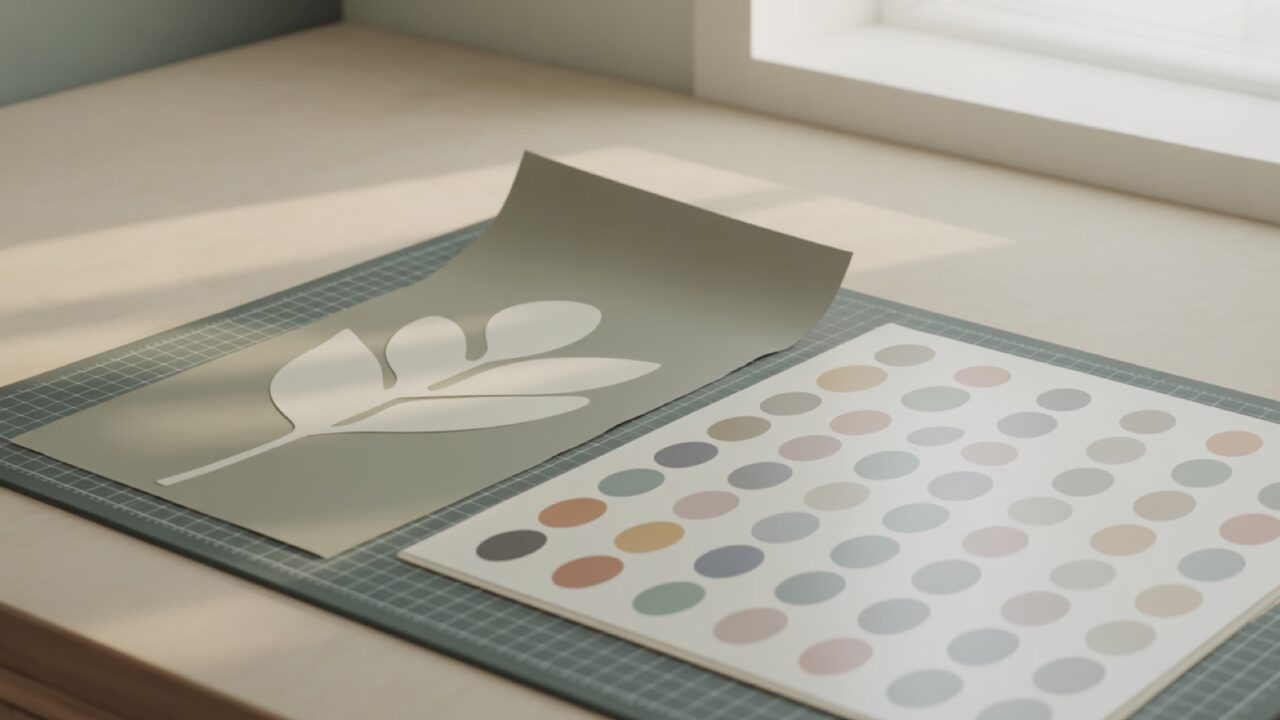
For SVG vs PNG for crafts, choose SVG when you need a scalable, editable cut file for Cricut or Silhouette, and choose PNG when you want a ready-made image for print-then-cut or sublimation. SVG keeps crisp edges at any size, while PNG holds full color and transparency for printed designs.
If you make decals, shirts, mugs, or paper projects, you have probably downloaded both file types and wondered which one your machine actually wants. The short answer is that each format solves a different problem. Knowing the difference saves you from blurry prints, jagged cuts, and wasted vinyl. This guide breaks down SVG vs PNG for crafts in plain language so you can pick the right file every time. If the file will not open at all before you get that far, that is a separate problem with its own fix list.
What is an SVG file?
An SVG is a vector file built from math, not pixels, so it stays sharp at any size. SVG stands for Scalable Vector Graphics, and instead of storing colored dots, it stores points, curves, and paths. That structure is exactly what cutting machines read when they trace a shape and send it to the blade.
Because an SVG is made of paths, your software can separate layers, change colors, weld letters, and resize a design from a coaster to a wall sign with zero quality loss. This is why most crafters treat SVG as the default for vinyl, iron-on, and paper cuts. You can read a deeper technical breakdown on the Scalable Vector Graphics reference page.
When SVG is the better choice
Reach for an SVG whenever the machine needs to cut around the shape. Good examples include single-color or layered vinyl decals, heat transfer vinyl for shirts and tote bags, stencils, and fine-detail paper or cardstock designs. Since the format scales cleanly, one SVG can serve a tiny phone decal and a large car window sticker from the same download.
📐 Technical Note
An SVG is a plain text file. Open one in a text editor and you will see tags describing each path: coordinates, curve handles, fill colors, and grouping. That is why a 2,000 node mandala can weigh less than a small photograph, and why a badly built file gives itself away. Paths that were drawn by tracing a low quality image carry far more nodes than the shape needs, and those extra nodes are what make a blade stutter around a curve.
What is a PNG file?
A PNG is a raster image made of pixels, and it supports a transparent background, which makes it ideal for printed craft designs. PNG stands for Portable Network Graphics, and it stores every pixel of color, including soft shadows, gradients, and photo-style detail that a pure cut file cannot hold.
The transparency feature matters a lot for crafters. A PNG with no background drops cleanly onto a shirt mockup, a sublimation blank, or a sticker sheet without an ugly white box around it. For full technical detail, see the PNG overview.
When PNG is the better choice
Use a PNG when the design will be printed rather than cut by shape. This covers sublimation tumblers and shirts, waterslide decals, printable stickers, and Print Then Cut projects where your machine prints the colorful art first and then trims a simple outline. If your design has many colors or a watercolor look, a high-resolution PNG keeps that richness intact. You can browse ready-to-print options in our PNG sets.
SVG vs PNG for crafts: side by side comparison
The table below sums up the core differences so you can match the file to the project at a glance. Keep it handy the next time you download a bundle and are unsure which file your machine needs.
| Feature | SVG | PNG |
|---|---|---|
| Editable | Yes, layers, colors, and paths can all be changed | Limited, you edit pixels, not separate shapes |
| Scalable | Infinite, sharp at any size | Fixed, blurs when enlarged past its resolution |
| Transparency | Yes, background-free by nature | Yes, supports a clear background |
| File size | Usually small for line art | Larger, grows with resolution and detail |
| Best use | Cutting vinyl, HTV, stencils, paper | Printing, sublimation, Print Then Cut, stickers |
| Machines | Cricut, Silhouette, Cameo cut modes | Any printer, plus Print Then Cut workflows |
🔢 Quick Numbers
Three numbers cover most craft file decisions. 300 DPI is the print resolution to aim for on any PNG, measured at the finished size rather than the size on screen. 6.75 by 9.25 inches is the standard Print Then Cut ceiling on an Explore or Maker, which caps how large a printed sticker sheet can be. And zero is the number of times an SVG loses quality when you scale it, which is the whole reason the format exists.
Which file should you use for Cricut and Silhouette?
For pure cutting jobs use the SVG, and for printed jobs use the PNG. Cricut Design Space and Silhouette Studio both import SVG files and read the paths as cut lines, which is what you want for vinyl and iron-on. When you upload a PNG to a cutting machine, the software has to guess where the edges are, and the result is often rough or oversimplified.
That said, both machines have a Print Then Cut feature, and this is where PNG shines. You print the full-color PNG on your home printer or sublimation setup, then the machine cuts a clean border. So the honest rule for SVG vs PNG for crafts is simple: cutting the shape means SVG, printing the art means PNG. You can confirm import steps inside Cricut’s image upload page before you start a project.
Can you convert a PNG to an SVG?
Yes, but the result depends on the original image. Converting a PNG to an SVG means tracing the pixels into vector paths, a process Design Space calls Upload and Silhouette calls Trace. Simple, high-contrast graphics like a black silhouette convert well. Photos, gradients, and busy designs convert poorly because there are no clean edges to follow.
For the best outcome, start with a true SVG whenever you plan to cut. If you only have a PNG and need to cut it, pick a bold, single-color image and clean up stray points after tracing. A free editor like Inkscape and its Trace Bitmap tutorial can refine traced paths before you send them to your machine.
The other formats in a cut file bundle
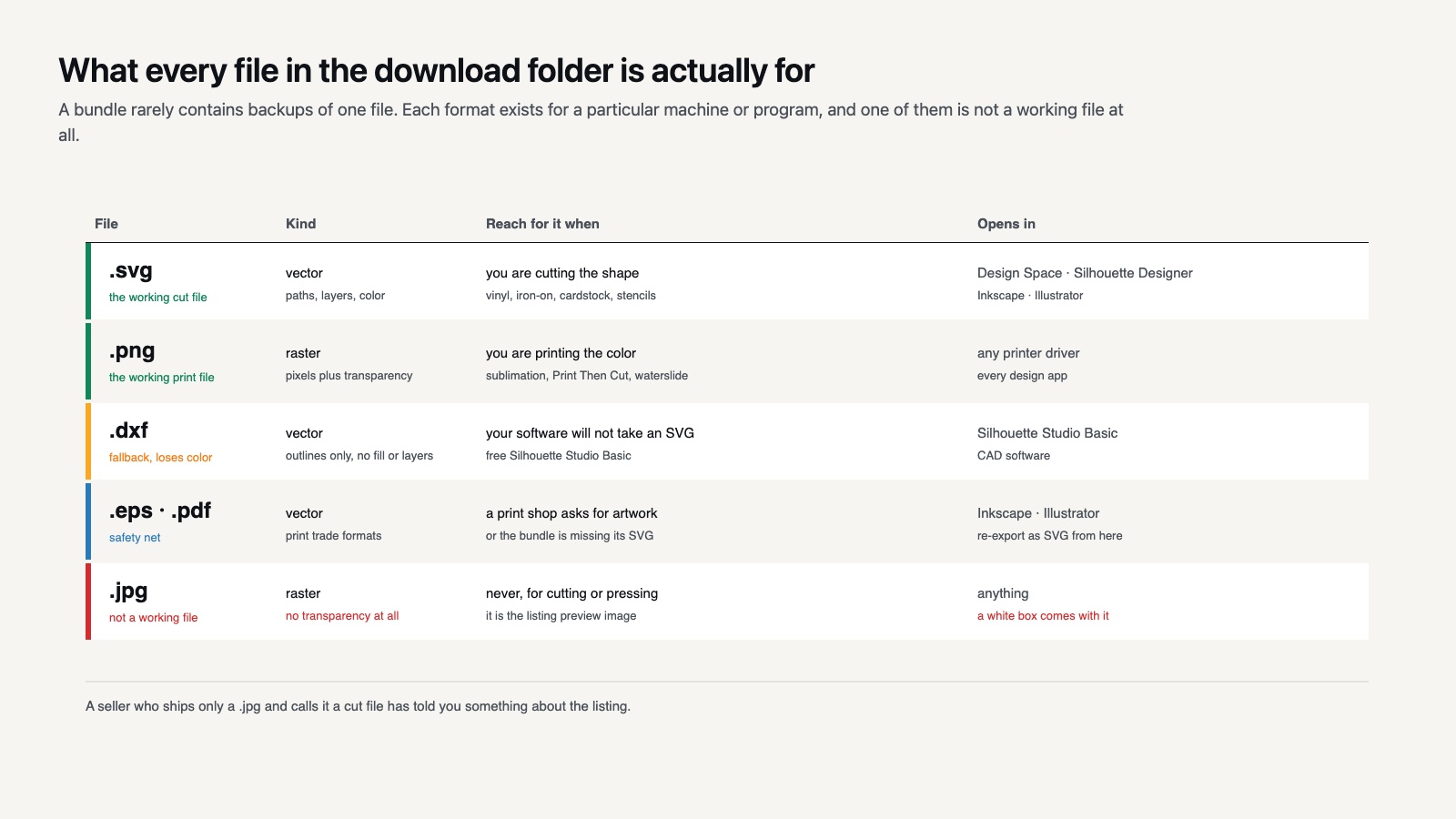
Most bundles arrive with more than two files, and the extras confuse people more than they help. A typical download holds an SVG, a PNG, a DXF, sometimes an EPS or PDF, and occasionally a JPG. Each one is there for a specific machine or program rather than as a backup of the others.
DXF is the format to reach for if you own the free version of Silhouette Studio, which will not import SVG at all. It carries cut lines but drops color and layer information, so a layered design opens as a set of outlines you have to sort out yourself. The trade is real but it does get you cutting, and the free versus Designer Edition comparison sets out exactly what you give up.
EPS and PDF are vector formats aimed at print shops and older design software. Both open in Inkscape and in Adobe Illustrator, and both can be re-exported as SVG if your bundle is missing one. Treat them as a safety net rather than a file you cut from directly.
A JPG in the bundle is almost always a preview image, not a working file. It has no transparency, so the white background comes along with the design, and it compresses detail in a way that leaves halos around sharp edges. If a seller ships only a JPG and calls it a cut file, that on its own tells you something about the quality of the listing.
Keeping the whole folder together costs nothing and saves the download later. The formats you never open are still the ones you will want the day you change machines or send a design to a print supplier.
Quality, scaling, and print results
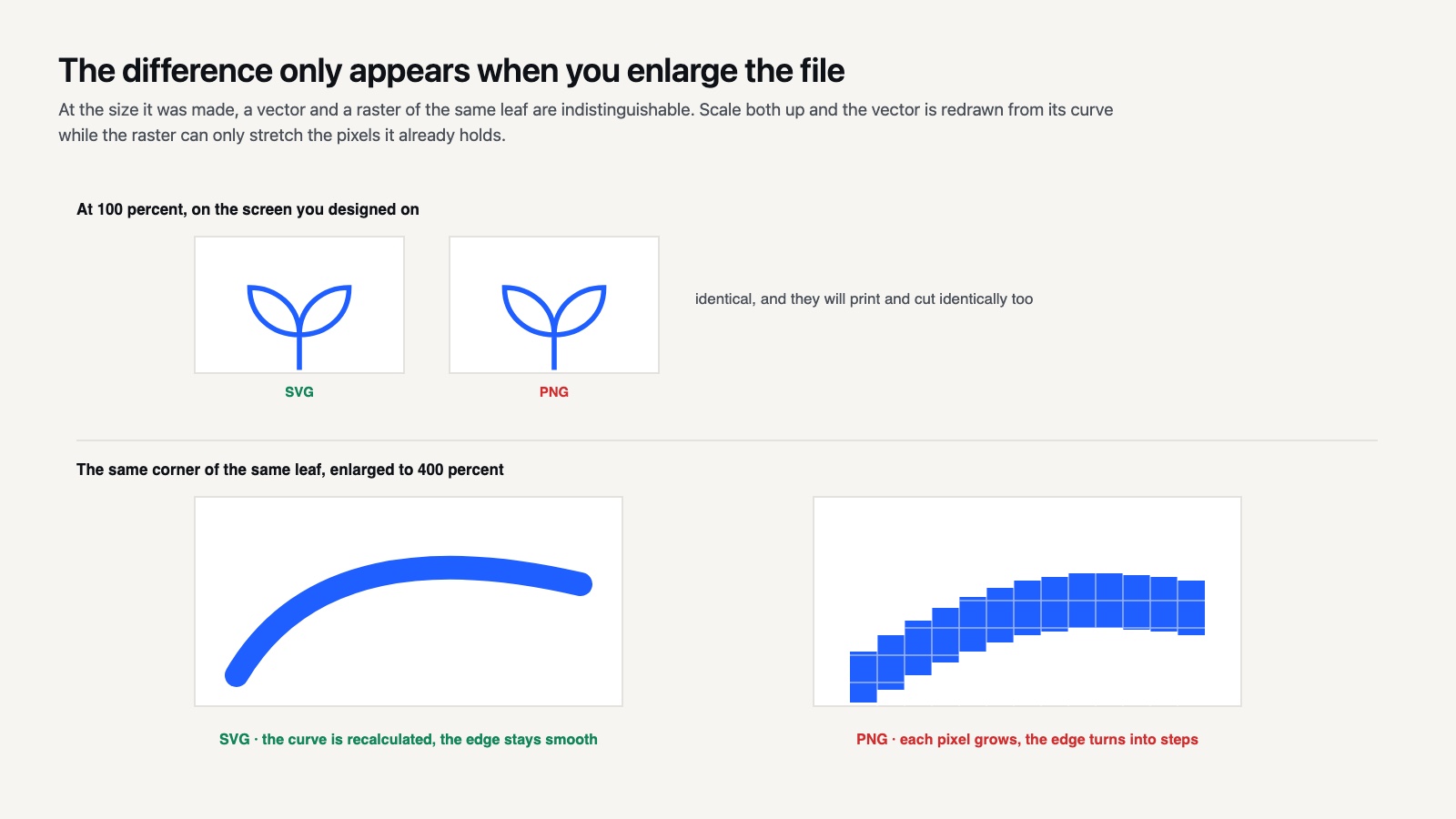
Scaling is where the two formats behave most differently. Resize an SVG to any dimension and the edges stay razor sharp because the software recalculates the math. Enlarge a PNG beyond its built-in resolution and you get soft, blocky edges, since the file only contains a fixed number of pixels.
For printed projects, resolution is the number to watch. Aim for a PNG at 300 DPI at the size you intend to print, which keeps sublimation and sticker art crisp. A 300 DPI 4 inch design will look great on a small tag but pixelated stretched across a large shirt, so always download the size you need or larger.
Does file size affect craft quality?
File size matters more for storage and loading than for the finished craft, but it is still a useful clue. SVG line art is usually tiny because it stores instructions, not pixels, so even a detailed mandala can be a few kilobytes. A high-resolution PNG is larger because it records every dot of color, and a transparent 300 DPI design can run several megabytes.
A bigger PNG often signals more detail and better print quality, while a small SVG is normal and not a sign of low quality. If a PNG looks tiny in megabytes yet you plan a large print, double-check its dimensions and DPI before committing materials.
Common mistakes crafters make with file types
The most frequent slip is trying to cut a PNG as if it were a vector. Without true paths, the machine traces a rough outline and your decal loses fine detail. The reverse mistake is sending an SVG to a sublimation printer expecting full color, when an SVG carries only flat fill colors and no gradients or photo detail. Sublimation wants a properly prepared PNG every time.
Another common issue is enlarging a small PNG and printing it blurry. Always check the pixel dimensions first. Finally, crafters sometimes forget that PNG transparency is what keeps a design background-free, so saving as JPG instead adds an unwanted white box. For most makers, keeping both an SVG and a PNG version of a favorite design covers every project type.
⚠️ Common Mistake to Avoid
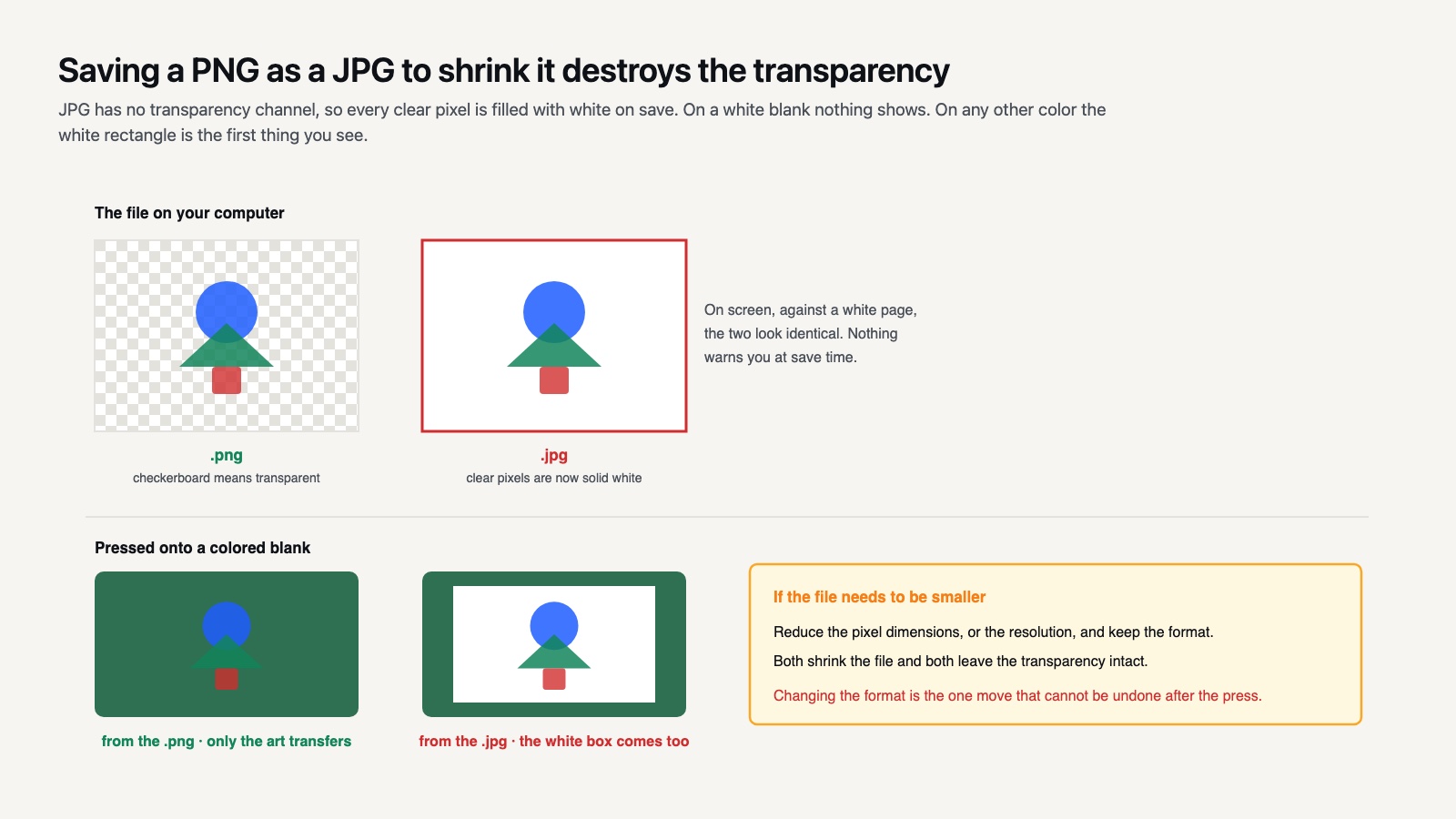
Saving a transparent PNG as a JPG to shrink the file is the mistake that costs the most material. JPG has no transparency channel at all, so the moment you convert, every clear pixel turns white. On a sublimation blank that shows up as a pale rectangle baked around your artwork, and there is no rescuing it after the press. If a file needs to be smaller, reduce its pixel dimensions or its DPI rather than changing the format.
Quick decision guide for SVG vs PNG for crafts
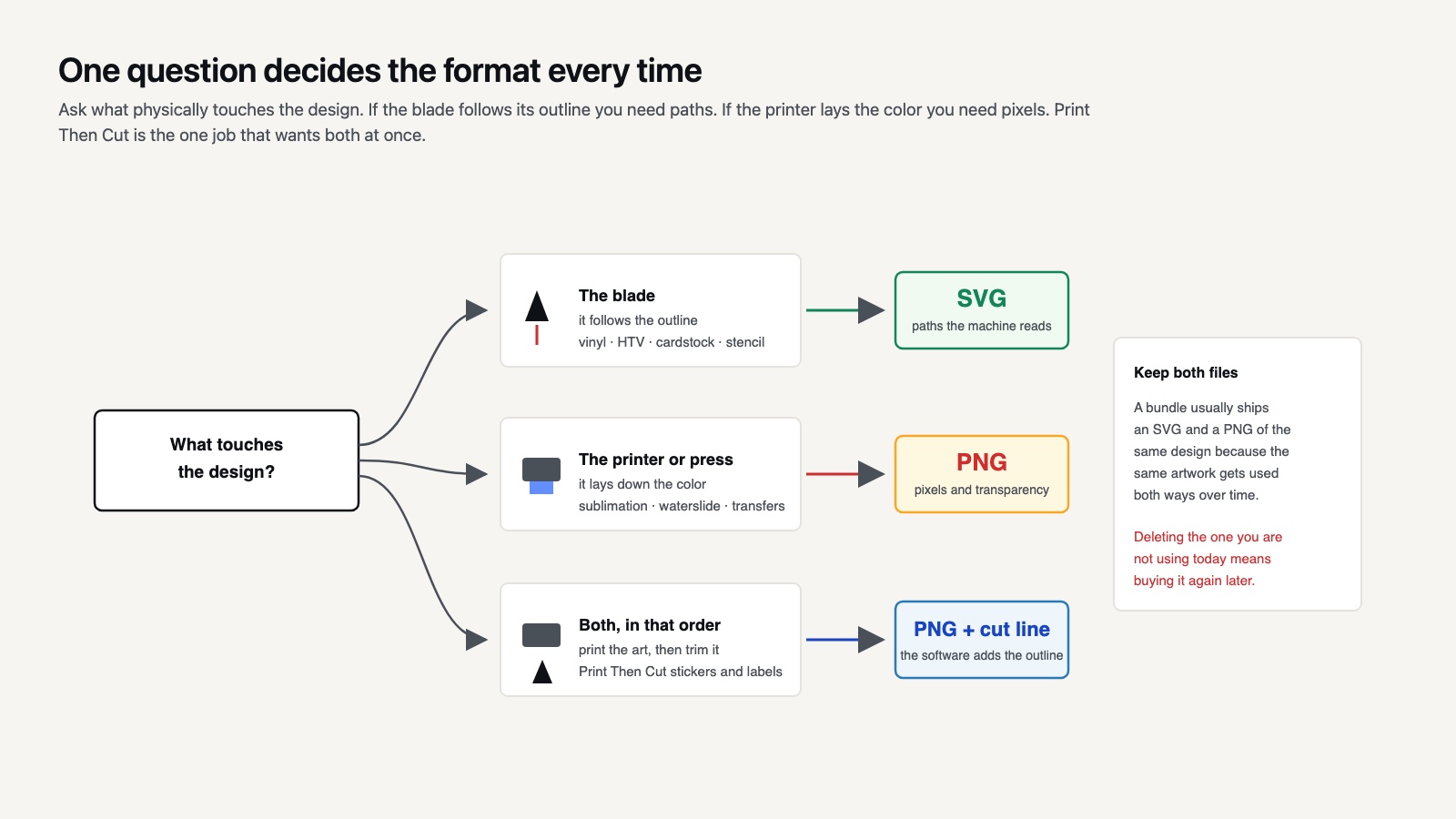
If your blade touches the design, download the SVG. If your printer touches the design, download the PNG. Layered vinyl shirt, paper card, or window decal points to SVG. Sublimation mug, printable sticker sheet, or waterslide decal points to PNG. Print Then Cut sits in the middle and uses a PNG for the art with the machine adding a cut line, which is the exact workflow behind making stickers on a Cricut.
When a bundle gives you both formats, keep them together so you are ready for any idea later. You can explore both file types across our catalog of SVG DROP cut files and pick the format that fits the project in front of you.
About SVG DROP: SVG DROP draws and tests SVG and PNG cut files for Cricut, Silhouette, and Cameo crafters. Every design is tested for clean cuts and crisp prints so makers can download with confidence and spend less time troubleshooting files and more time creating.
Frequently asked questions
Is SVG or PNG better for Cricut?
SVG is better for Cricut when you are cutting vinyl, iron-on, or paper, because Design Space reads its paths as exact cut lines. PNG is better for Print Then Cut projects where you print full-color art and let the machine trim a simple outline around it.
Can I use a PNG for sublimation?
Yes, PNG is the preferred format for sublimation because it supports a transparent background and full color detail. Use a 300 DPI PNG at the size you plan to print so the design stays sharp on shirts, tumblers, and other blanks. Press settings vary by blank, and the sublimation temperature and time guide lists them.
Do I lose quality resizing an SVG?
No, an SVG keeps perfect quality at any size because it is built from math rather than fixed pixels. You can scale the same file from a small label to a large sign with no blur, which is a major advantage over PNG for cut projects.