





Silhouette Cameo for Beginners: Your First Cut
 Published
 Updated
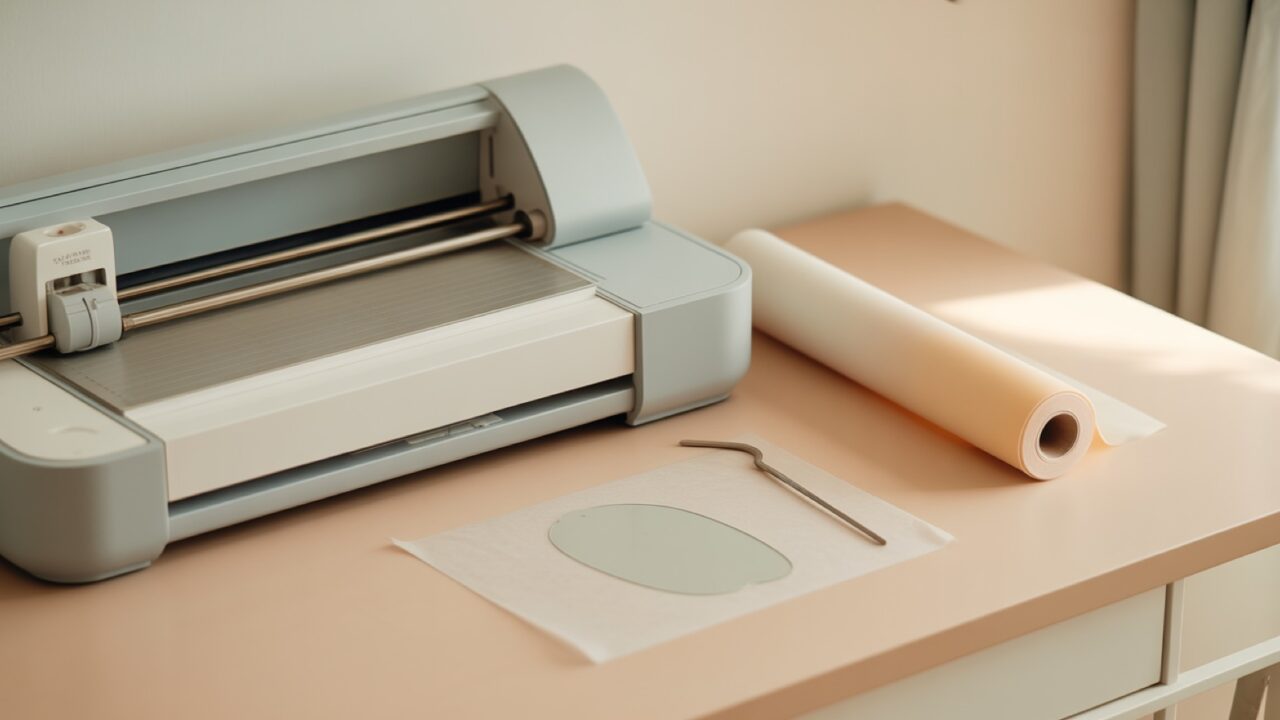
The Silhouette Cameo for beginners is easier than it looks once you understand the order of operations. Open Silhouette Studio, import or design your file, place vinyl or cardstock on the cutting mat, choose the right blade and material setting, then send the project to cut. Follow those five steps in order and your first project will turn out clean.
If you just unboxed your machine and feel a little unsure where to start, you are in good company. Most new crafters stall not because the Cameo is hard, but because nobody walks them through the full sequence from blank screen to finished decal. This guide does exactly that, in plain language, so you can make your first successful cut today and build real confidence with the machine. If you are still choosing between models, the Cameo 5 range comparison covers what separates them.
What you need before your first cut
Getting set up correctly removes most of the frustration people blame on the machine. The Silhouette Cameo for beginners works best when your tools and software are ready before you start designing. Gather everything first so you are not hunting for a weeding tool halfway through a project. Here is the short list.
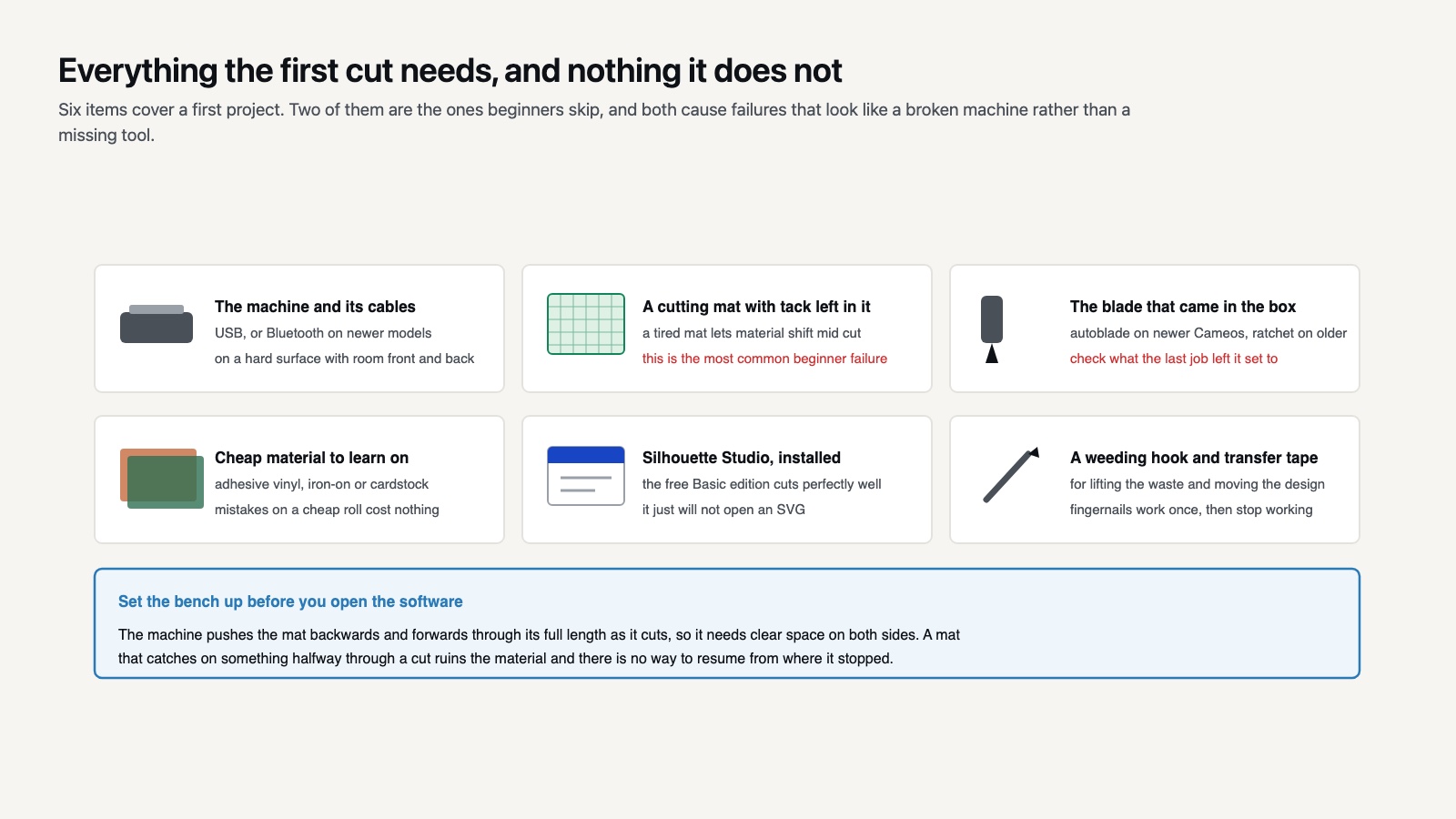
- The Cameo machine and its power and USB cables (or a Bluetooth connection on newer models).
- A cutting mat rated for your machine size. The mat holds your material flat while the blade moves.
- The autoblade or ratchet blade that shipped in the box.
- Material to cut, such as adhesive vinyl, heat transfer vinyl (HTV), or cardstock.
- Silhouette Studio, the free design software, installed on your computer.
- A weeding tool or hook and transfer tape if you plan to apply vinyl.
You do not need premium materials for practice. A cheap roll of vinyl is perfect for learning, because mistakes cost almost nothing. Save the good stuff for once you trust your settings. Set up your workspace on a flat, hard surface with room on both sides for the mat to feed through, since the machine pushes the mat back and forth as it cuts. Good lighting helps too, especially later when you weed fine detail.
Installing Silhouette Studio
Download Silhouette Studio from Silhouette’s own software page and run the installer. The basic edition is free and handles everything a beginner needs, including importing ready-made designs and laying out simple text. You can upgrade later if you want advanced features such as designer fonts or advanced rhinestone tools, but the free version cuts just fine and is all you need for your first dozen projects. Connect your machine over USB or Bluetooth, and Silhouette Studio will recognize it automatically.
💡 Pro Tip
Keep the clear liner that came with your mat and put it back on every time you finish. A Cameo mat loses tack mainly to dust and lint from the air, not to use, and a covered mat stays usable far longer than a bare one left on the desk. When it does go dull, wash it with warm water and a drop of dish soap, rinse, and let it air dry face up. Most mats come back from that once or twice before they genuinely need replacing.
How do I make my first cut on a Silhouette Cameo?
To make your first cut on a Silhouette Cameo, set up your design in Silhouette Studio, load your material on the mat, pick the matching material setting, then click Send. The machine reads the cut lines and traces them with the blade. The whole process takes only a few minutes once the file is ready.
Here is the full sequence, step by step, so nothing gets skipped.
- Open and prepare your software. Launch Silhouette Studio, set your page size to match your mat, and import a design or type your text. If you bought a ready-to-cut file, drag the SVG straight onto the canvas. Note that the free Basic edition will not take one, which the edition comparison explains along with the free DXF route around it.
- Finalize your design. Size the artwork to fit your project, then check that every shape has clean cut lines. For text, weld letters together if you want a connected word. Use the preview to confirm what the blade will trace.
- Load the cutting mat. Peel the protective film off a new mat, press your material firmly into the top-left corner, then feed the mat into the machine against the guide marks and tap Load.
- Choose blade and material. Insert the autoblade, open the material panel, and select your exact material (for example “Heat Transfer, Smooth”). Silhouette Studio sets blade depth, force, and speed automatically for that choice.
- Send to cut. Click Send, watch the first pass, and let the machine finish. Unload the mat, peel away your material, and weed out the excess.
That is genuinely all there is to it. Browse our SVG DROP cut files if you want a tested design for that very first run, since starting with a clean file removes one variable from the learning curve. The first time you press Send and watch the blade trace your design, the whole machine clicks into place mentally, and the next project feels far less daunting.
A quick note on file formats
Most cut files come as SVG, a scalable format that keeps crisp edges at any size. If you want the background on why SVG works so well for crafting, the Scalable Vector Graphics overview explains it plainly. The free Silhouette Studio edition opens SVG files directly, so you can import and cut without any conversion. PNG files are raster images and work for print-then-cut projects, but for clean vinyl cuts an SVG is what you want because it stays sharp no matter how large you scale it.
About SVG DROP: SVG DROP draws and tests SVG and PNG cut files for Cricut, Silhouette, and Cameo crafters. Every design is tested for clean cut lines and ships ready to import, so beginners and pros alike can go from download to finished project without guesswork.
🔢 Quick Numbers
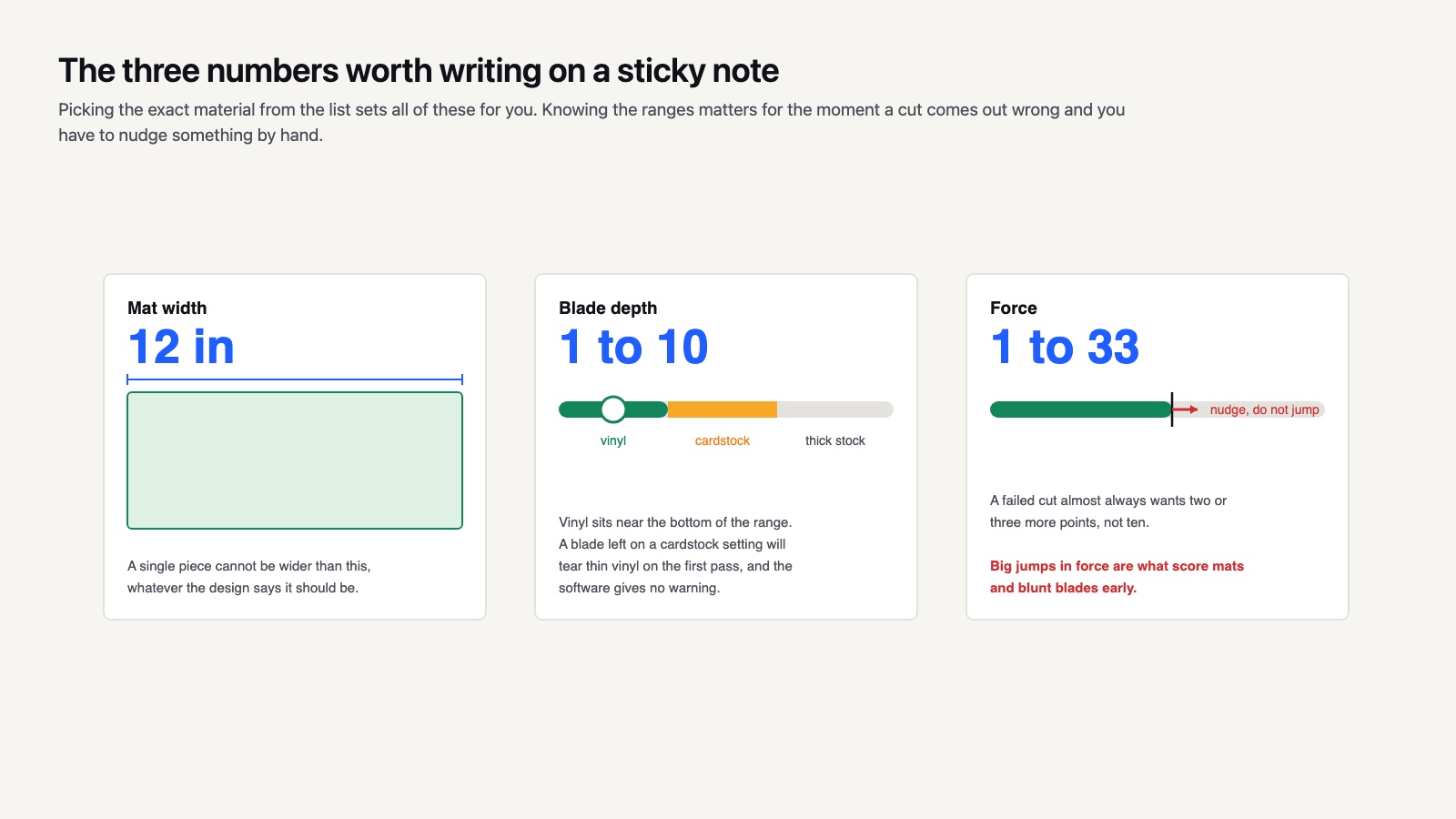
Three numbers are worth writing on a sticky note. A standard Cameo cuts a 12 inch wide mat, which caps the width of any single piece. Blade depth runs 1 to 10, and vinyl sits near the bottom of that range while cardstock sits near the middle. And force runs 1 to 33, where a failed cut almost always wants two or three more points rather than ten. Large jumps in force are what score mats and blunt blades.
What material settings should a beginner use?
Beginners should always select the exact material in Silhouette Studio rather than guessing the blade depth. The software loads the correct force, speed, and blade setting for each material, which prevents tearing thin vinyl or failing to cut through thick cardstock. Matching the setting to the material is the single biggest factor in a clean result.
If a cut comes out incomplete, you do not need to change the recipe blindly. Try a small test cut on a free design rather than the file you care about, then nudge the force up a few points or add a second pass. Vinyl that lifts at the edges usually needs slightly more force, while cardstock that tears wants a touch less. Keep a small notebook of the settings that worked for each material so you can repeat your wins. The same habit pays off on any Cameo generation, since the presets shift slightly between software versions. Over a few projects you will build a personal cheat sheet that beats any generic chart, because it reflects your exact blade, mat, and material brands.
⚠️ Common Mistake to Avoid
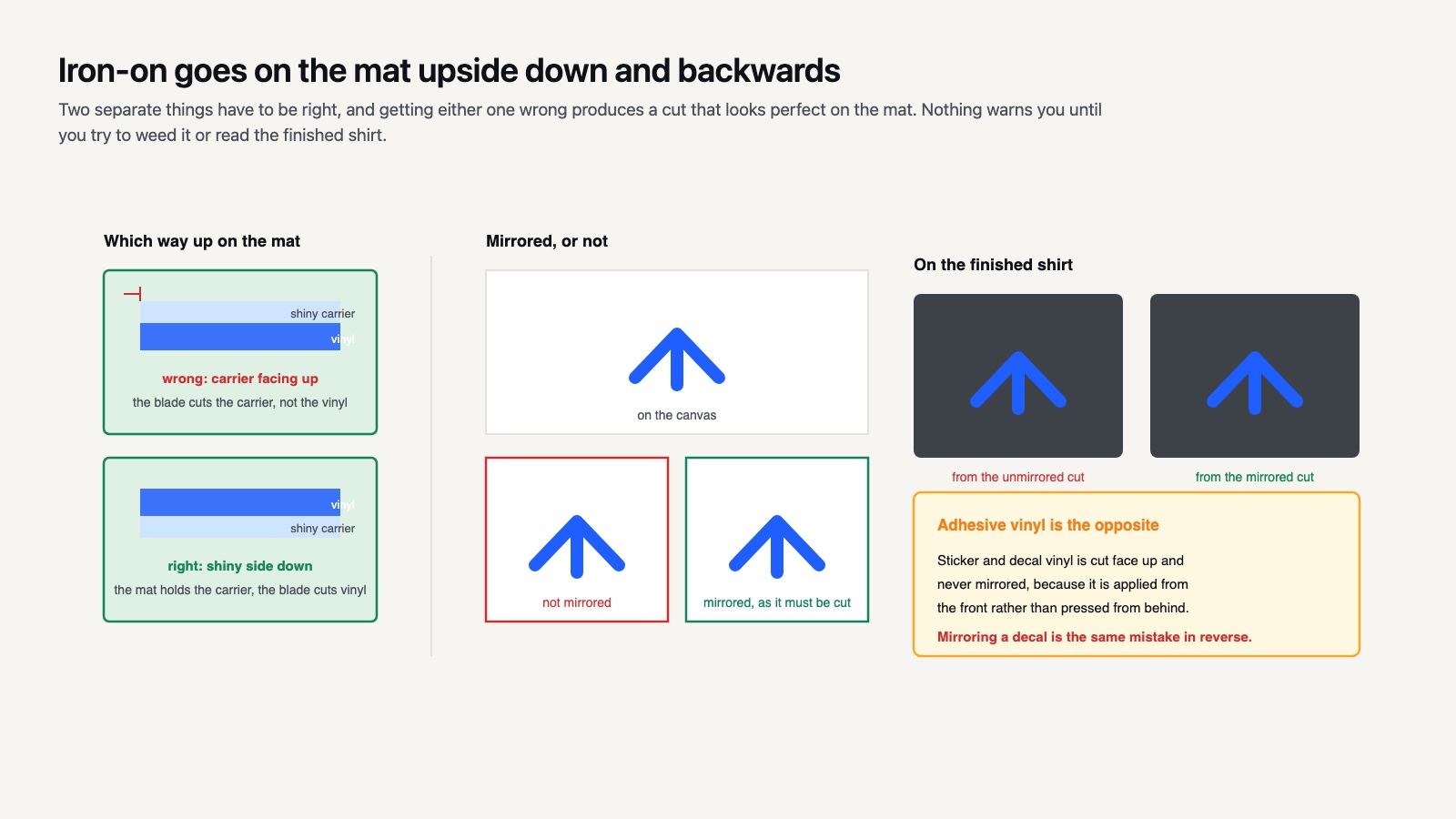
Cutting heat transfer vinyl the right way up is the mistake every beginner makes exactly once. HTV goes on the mat shiny carrier side down, dull adhesive side up, and the design has to be mirrored before you send it. Get either one wrong and the cut itself looks perfect, so nothing warns you until you try to weed a sheet where the carrier is underneath, or you press a name that reads backwards.
Kiss cut versus cut through
Adhesive vinyl and HTV use a “kiss cut,” meaning the blade slices the top layer but leaves the backing intact. Cardstock and sticker paper are cut all the way through. Choosing the right material setting handles this distinction for you, which is one more reason to trust the preset instead of overriding it on day one. If you ever notice the blade scoring your mat, that is a sign the force or blade depth is set too high for the material, and you should dial it back before your next pass.
How do I weed and transfer my design?
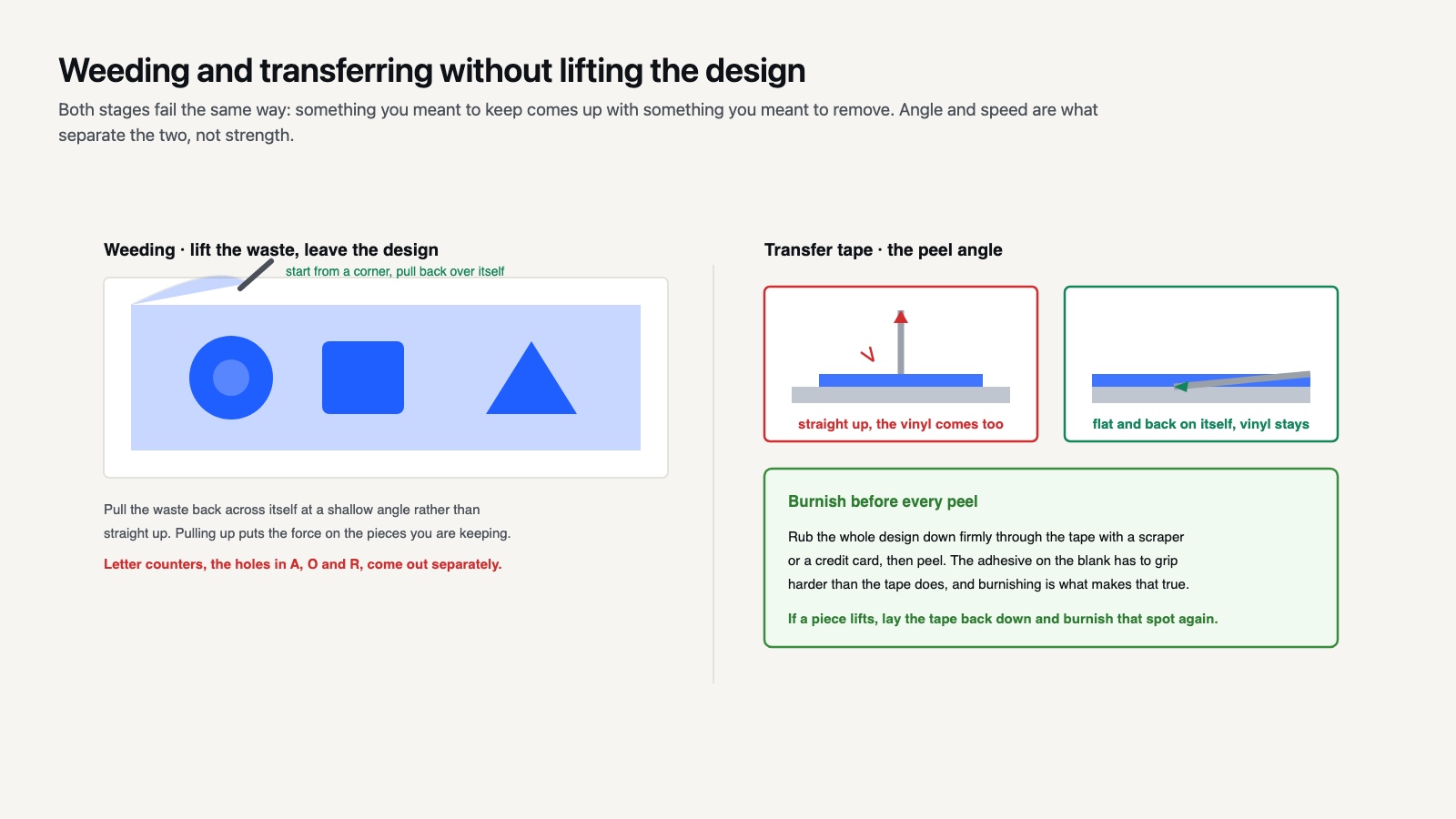
Weeding means removing the excess material around your design after the cut, leaving only the shapes you want. Use a weeding hook to peel away the negative space, then apply transfer tape over adhesive vinyl, lift the design off its backing, and press it onto your surface. Burnish firmly and peel the tape away at a low angle.
Weeding feels fiddly at first and then becomes oddly satisfying. Work under good light, pull slowly, and start from a corner. Fine-detail designs weed more easily when the cut lines are clean, which loops back to using well-made files and the correct material setting. For heat transfer vinyl, remember that you cut it mirrored and shiny-side down, then apply heat through the carrier sheet with an iron or heat press at the temperature and dwell time the vinyl maker specifies. Siser publishes its figures in a material reference chart. Let it cool before you peel the carrier, since a warm peel can lift the design.
Common first-project mistakes to avoid
- Forgetting to mirror HTV. Heat transfer vinyl must be flipped before cutting, or your text will be backward.
- Skipping the test cut. Thirty seconds of testing saves a whole ruined sheet.
- Using a tired mat. A mat that has lost its tack lets material shift mid-cut, and a shifted mat is the most common cause of a cut that wanders off the line halfway down.
- Leaving the blade in from the last job. An autoblade set for cardstock will tear thin vinyl on the first pass, and the software will not warn you.
- Pulling transfer tape straight up. Peel at a sharp, low angle so the vinyl stays put.
- Designing too small. Tiny, detailed first projects are hard to weed, so size up while you learn.
Choosing your first project
Pick something small and forgiving for your debut. A single-color vinyl decal for a water bottle, a simple name sign, or an iron-on for a tote bag all give a strong sense of progress without demanding perfect technique. The goal of the first cut is to learn the workflow, not to produce a masterpiece, so keep the design simple and the material cheap.
Once you have one clean cut behind you, the Silhouette Cameo for beginners stops feeling intimidating and starts feeling like a tool you control. From there you can layer colors, try print then cut stickers, and explore more detailed files. Each new technique builds on the same five-step rhythm you just learned. If you hit a snag, our FAQ answers the questions new crafters ask most, from blade care to mat stickiness.
Treat your first few projects as practice runs rather than tests you can fail. Every crafter has a small pile of wonky early cuts, and those mistakes teach you more than a perfect result ever would. Keep your machine fed with simple designs, take notes on what works, and your confidence will grow faster than you expect. Within a week of regular practice you will be reaching for the Cameo whenever you want a quick decal, label, or gift, and the setup steps will become second nature. Many beginners find that a simple checklist taped near the machine, listing the five steps, keeps every project moving smoothly until the routine sticks.
Frequently asked questions
Is the Silhouette Cameo good for complete beginners?
Yes. The Silhouette Cameo for beginners pairs well with free Silhouette Studio software, automatic material settings, and an autoblade that adjusts itself. Start with cheap vinyl and a simple design, follow the five-step workflow, and you can make a clean cut on your first day with no prior experience.
Do I need to buy designs or can I make my own?
You can do both. Silhouette Studio lets you create text and simple shapes for free, and it also imports ready-made SVG files. Many beginners start with tested cut files to learn the process, then design their own once they understand sizing, weeding, and material settings.
Why is my Cameo not cutting all the way through?
Incomplete cuts usually mean the force is too low, the blade is worn, or the material setting does not match what is on the mat. Run a small test cut, increase the force a few points or add a second pass, and confirm you selected the exact material in Silhouette Studio.