





Layered SVG File: What It Is and Why It Matters
 Published
 Updated
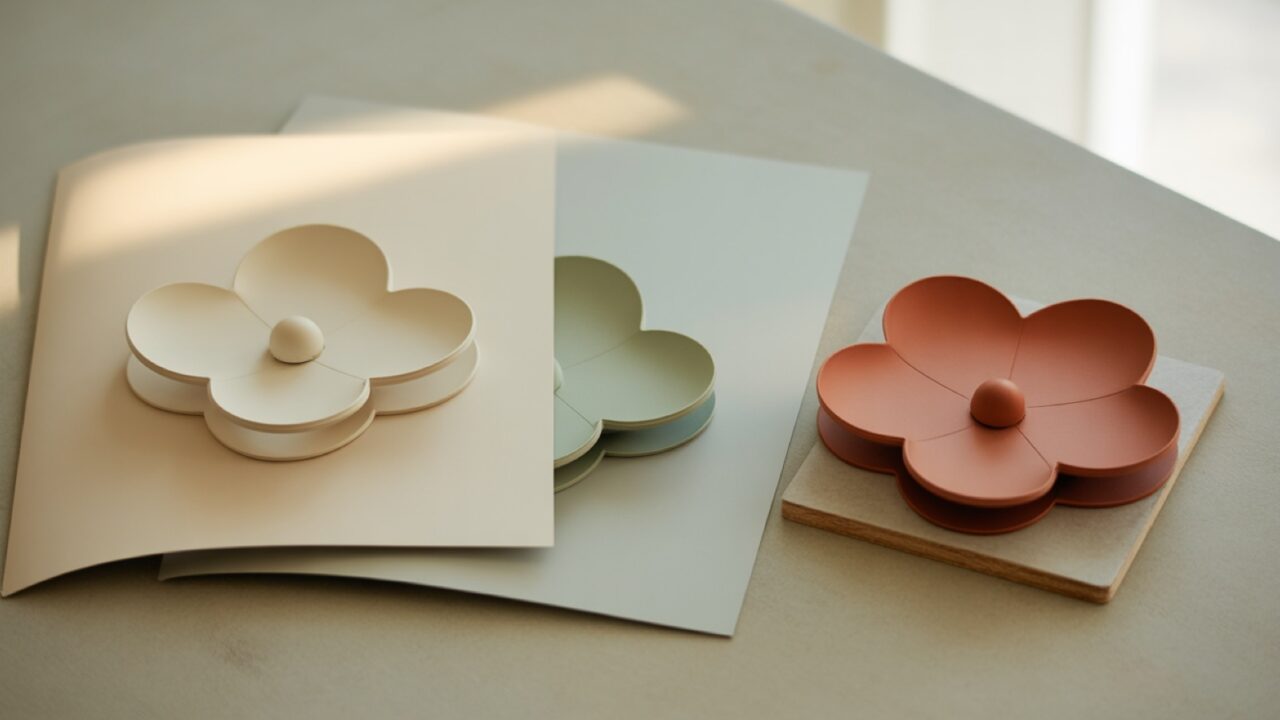
A layered SVG file is a vector cut file that keeps each color, shape, or design element on its own separate layer instead of merging everything into one flat outline. This structure lets crafters cut each layer from a different material color and stack them, so a single design becomes a multi-color, dimensional project on a Cricut or Silhouette machine.
If you have ever bought a design and wondered why some files cut as one solid shape while others split neatly into pieces you can assemble, the answer comes down to layering. Understanding a layered SVG file helps you pick the right files, save money on material, and finish projects that actually look like the preview image. This guide walks through what layers are, how they differ from flat files, and how to work with them in your cutting software. The Design Space side of the job, including Attach and Weld, is covered separately in layering an SVG in Cricut.
What is a layered SVG file?
A layered SVG file stores a design as a group of stacked vector paths, where each path or set of paths sits on its own layer. SVG stands for Scalable Vector Graphics, an open XML-based format that draws shapes using math rather than pixels, so the artwork stays sharp at any size. You can read the technical background on the Scalable Vector Graphics reference page.
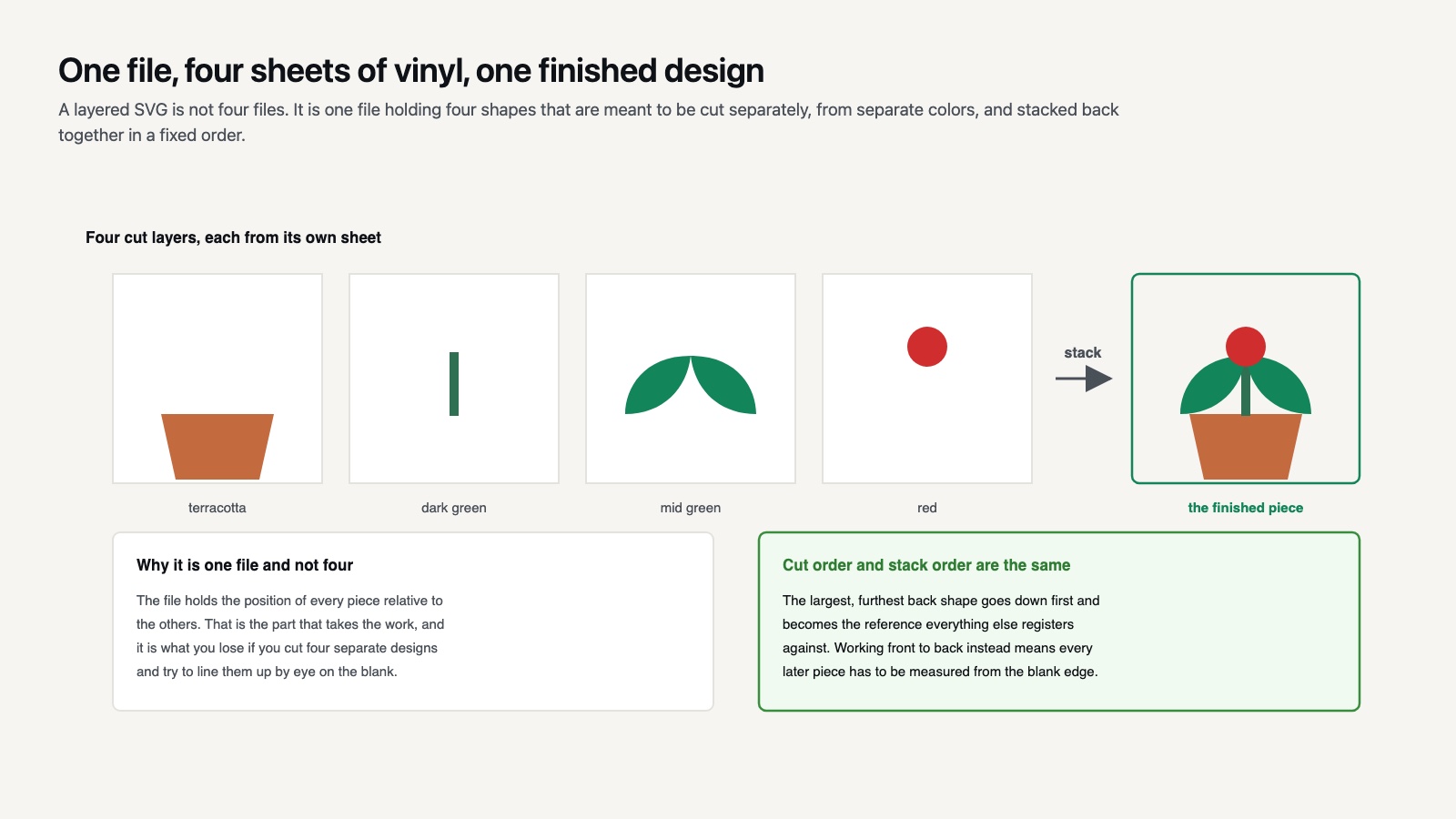
When a designer builds a layered SVG file, they separate the artwork by color and by stacking order. A simple flower design might have one layer for the petals, one for the center, and one for the stem. Each layer is meant to be cut from a different sheet of vinyl or cardstock, then layered on top of the others to recreate the full image. The file remembers which shape belongs where, so your software groups them correctly when you import.
📐 Technical Note
SVG has no single notion of a layer. What designers call layers are usually <g> group elements, sometimes carrying an Inkscape label attribute, and cutting software infers the separation from fill color rather than from the grouping. That is why a file can look correctly layered in one program and arrive as a single object in another. It also explains a common surprise: two shapes of the same color on different design layers will be treated as one cut layer, because color is what the machine sorts by.
Layers vs. a flat single-color file
The fastest way to see the value of layering is to compare the two file types side by side.
| Feature | Layered SVG file | Flat single-color SVG |
|---|---|---|
| Colors | Multiple, one per layer | One solid color |
| Cutting | Each layer cut separately | Cut in a single pass |
| Assembly | Stack and align layers | No assembly needed |
| Look | Dimensional, multi-color | Simple silhouette |
| Best for | Detailed shirts, signs, decals | Quick decals, stencils |
| Skill level | Beginner to intermediate | Beginner |
Neither type is better in every case. A flat file is perfect for a one-color name decal, and the format comparison covers when each type earns its place. A layered SVG file shines when you want a design with several colors and a bit of depth, such as a holiday shirt or a stacked title for a sign.
Why does a layered SVG file matter for crafters?
A layered SVG file matters because it controls how clean, colorful, and repeatable your finished project will be. When layers are built correctly, your cutting machine knows exactly how to split the colors, and you waste far less vinyl on trial and error. Here is what good layering gives you.
- Accurate color separation. Each color cuts from its own sheet, so you never have to weed away mismatched areas or fake a second color with markers.
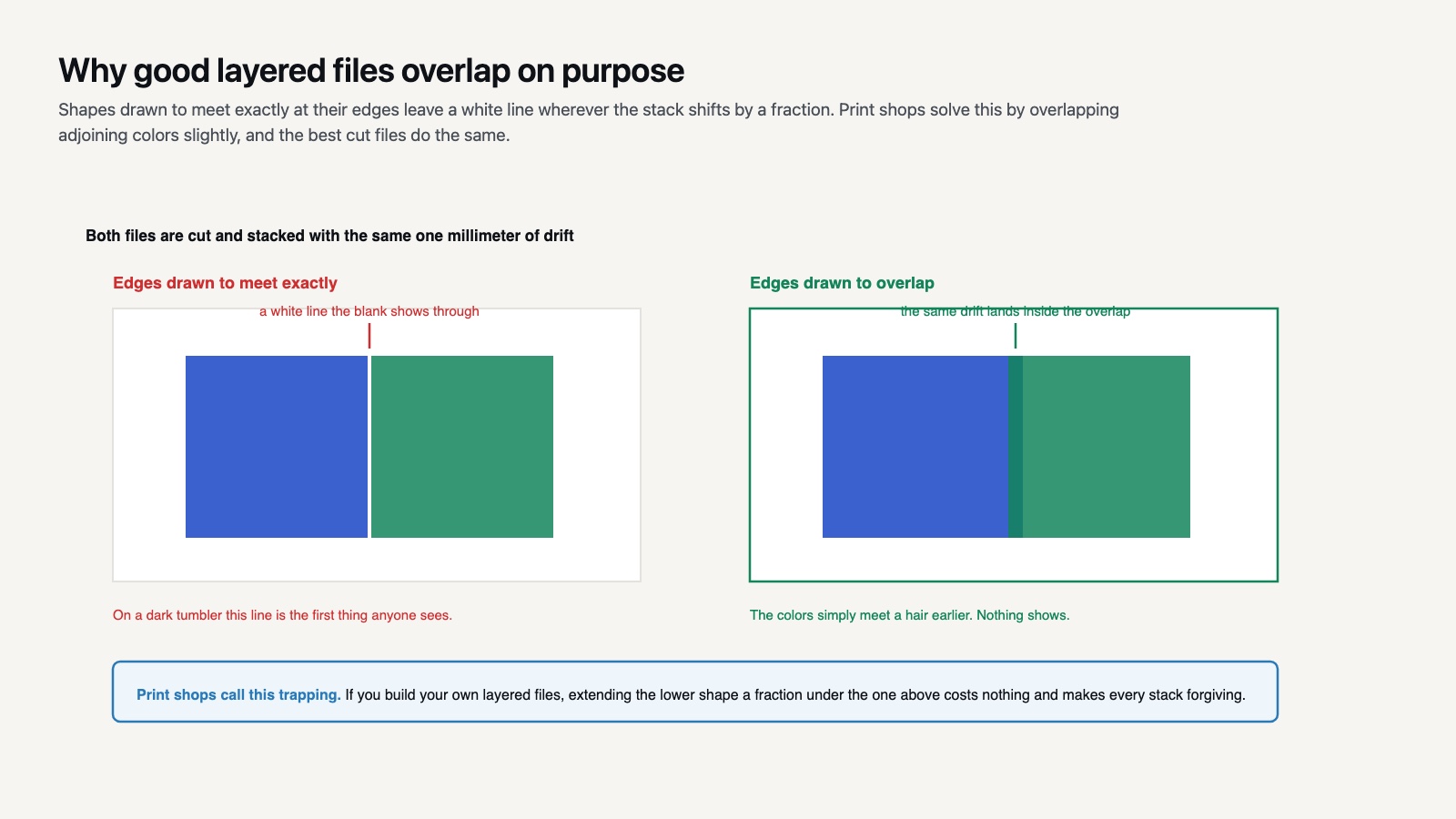
- Clean alignment. Layers are designed to stack in register, which means edges meet where they should instead of leaving gaps.
- Material savings. Because cuts are grouped by color, you can mat similar layers together and trim scrap waste.
- Dimension and depth. Stacking cardstock or vinyl adds a slight raised effect that flat prints cannot match.
- Editing freedom. You can hide, recolor, or resize a single layer without disturbing the rest of the design.
Browse our SVG DROP cut files and you will notice that most multi-color designs are sold as layered files for exactly these reasons. The layering is the work, and a well-built file saves you hours.
📌 Did You Know?
Layering is older than cutting machines by a long way. Screen printers have built multi-colour designs as separated plates for more than a century, and the vocabulary crafters use today, registration, base layer, trapping, comes directly from that trade. Trapping in particular is worth borrowing: print shops deliberately overlap adjoining colours by a hair so a small misalignment shows as a slight overlap rather than a white gap. Designers who build cut files the same way make your stacking far more forgiving.
What you usually get in a layered download
A layered design download typically includes more than the SVG itself. Most listings bundle several formats so the file works no matter which machine or software you own. A common package contains the layered SVG for Cricut and Silhouette, a DXF for the free version of Silhouette Studio, a high-resolution PNG with a transparent background for sublimation or print, and sometimes an EPS or PDF for desktop design programs. Keeping these formats together means you can switch tools later without rebuying the artwork. When you open the SVG, the layers carry across into your software, while the PNG stays flat for any print-and-cut or print-only use.
⚠️ Common Mistake to Avoid
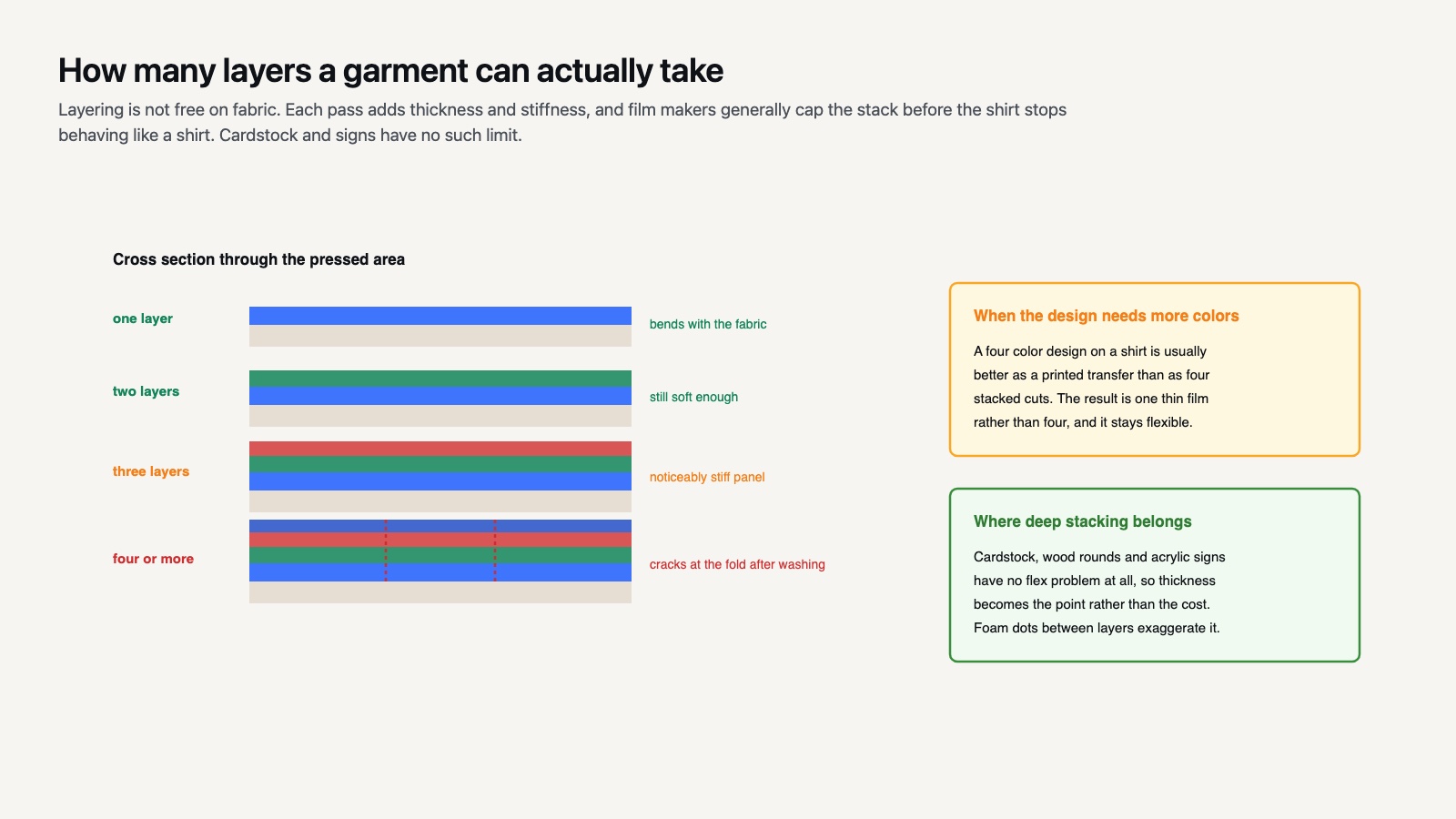
Layering every color is not always the right call. Each extra layer of heat transfer vinyl adds thickness and stiffness to a shirt, and most HTV manufacturers cap layering at three or four passes before the stack starts to crack at the fold. A four-color design on a t-shirt is usually better as a printed transfer than as four stacked cuts. Save deep stacking for cardstock and signs, where thickness is the point.
Common uses for layered designs
Layered SVG files appear in nearly every craft category. Crafters reach for them when making vinyl shirts with a logo and text in separate colors, paper cards with stacked florals, wood or acrylic signs with raised lettering, sticker sheets, mandala wall art, and seasonal decor. Anywhere you want more than one color cut precisely, a layered file is the right tool.
The reason a layered SVG file works so well for these projects is that it removes guesswork. Instead of eyeballing where a second color should sit, the design already holds that information. You cut, weed, and stack, and the result matches the mockup. That predictability is what turns a beginner project into something you would feel comfortable selling at a craft fair or giving as a gift.
How do you use a layered SVG file in Cricut or Silhouette?
You use a layered SVG file by importing it into your design software, letting the software split the layers by color, cutting each color from its own material, and then stacking the pieces in order. The exact steps depend on your machine, but the workflow is the same across brands.
In Design Space, upload the SVG and it appears as a grouped image with each layer listed in the Layers panel. When you press Make It, the software places each color on its own mat so you can load the matching vinyl. In Silhouette Studio, whose edition chart decides whether it will take an SVG at all, the layers import as grouped paths that you can release, assign to color groups, and cut one sheet at a time.
If you want to edit or build your own layered files, the free editor Inkscape uses a true layers system and exports clean SVG that both Cricut and Silhouette read well. It is a good way to learn how layers stack before you buy a paid tool.
Quick workflow checklist
- Import the SVG into your cutting software.
- Check the layers panel so each color shows as its own object.
- Assign materials and cut each color separately.
- Weed each piece carefully.
- Use the registration or alignment guides to stack layers in order.
- Press or adhere, working from the bottom layer up, at the temperature and dwell time the film calls for.
Tips to avoid alignment mistakes
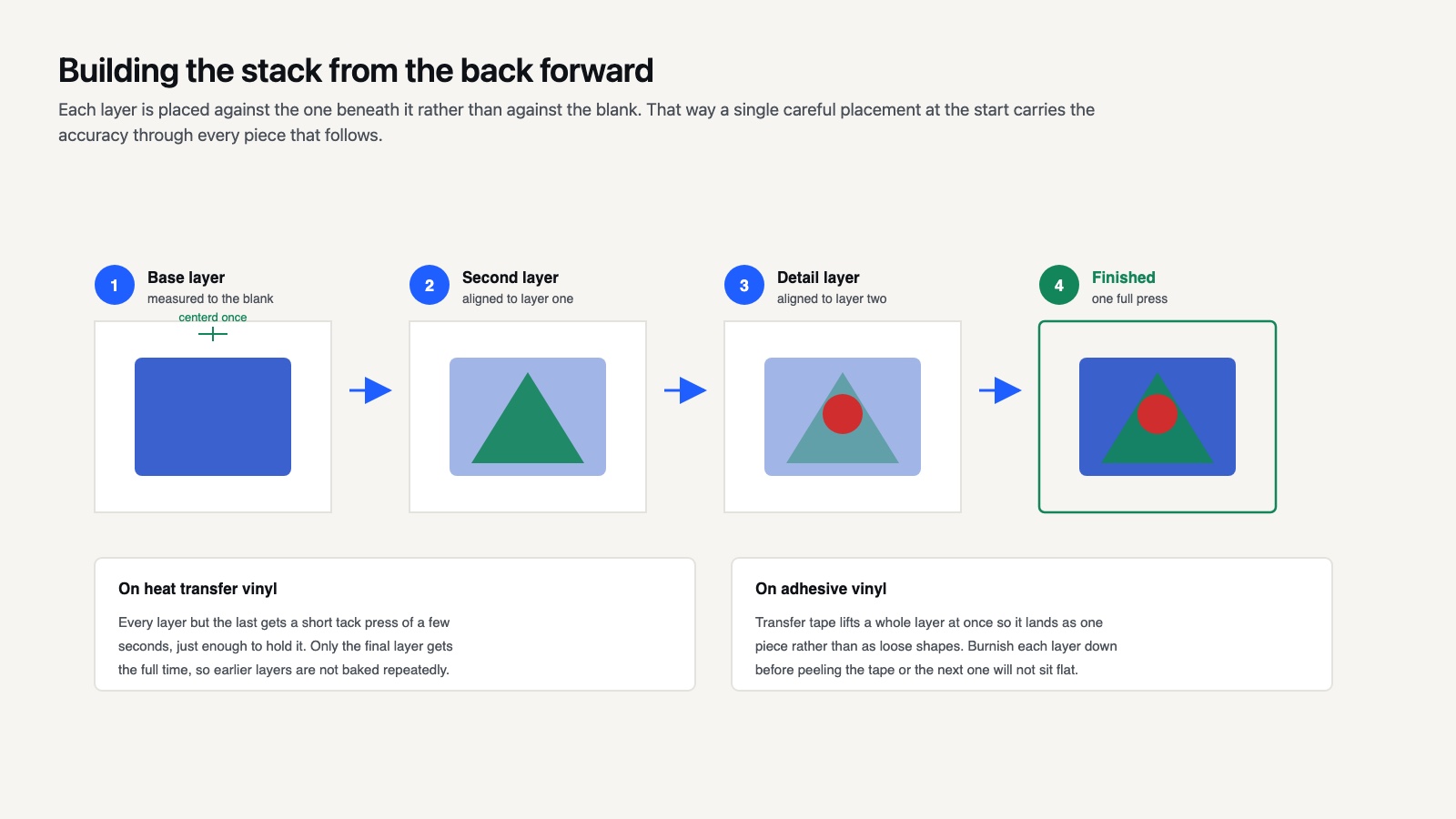
Most layering problems come from misaligned pieces. To keep everything square, cut a thin registration box around your design when the file includes one, and use transfer tape for vinyl so a whole layer lifts at once. For heat transfer vinyl, press the bottom layer first with a short tack press, then add the next layer and press again. Working from the back of the design forward keeps the stacking order correct and prevents trapped edges.
It also helps to plan your colors before you cut. Lay out which sheet goes with which layer, label your weeded pieces with a sticky note, and keep the layers in order on a clean mat. A few extra minutes of organizing at the start prevents the frustration of stacking a layer in the wrong spot after the adhesive has already grabbed. If a layer does shift, gently lift it while the vinyl is still cool rather than forcing it, since pulling warm HTV can stretch the design out of register.
💡 Pro Tip
Cut the largest layer first and use it as your alignment jig. Weed it, apply it, and let it become the reference every smaller piece registers against rather than measuring each one from the edge of the blank. On a shirt that means the base silhouette goes down first and the detail lands on top of it, which is far more forgiving than trying to place four separate pieces against a seam.
Not every SVG comes with layers
No, not every SVG comes with usable layers. Some files are saved flat, meaning all shapes are merged into one path with a single color, while others are layered but poorly grouped, so the colors do not separate cleanly on import. Before you buy, check the product description or preview to confirm the file is sold as a layered design. The wider set of quality signals worth checking applies here too.
A quality layered SVG file should open with each color clearly separated and named, group correctly so it stays together when you move it, and include a preview that matches the layer count. If you are unsure whether a file will layer the way you expect, our FAQ explains how our files are structured and what software they support.
How to spot a well-built layered file before you buy
A few quick checks save you from a frustrating cut. First, look at the product images and count the colors shown, then confirm the description mentions layers or a layered format. Second, read whether the listing names supported software, since a file tested in Cricut Design Space and Silhouette Studio is far more reliable than one with no notes. Third, watch for a transparent PNG in the bundle, which tells you the seller prepared the artwork properly rather than exporting a flat screenshot. A file that ticks these boxes will almost always drop into your software with the layers intact, ready to cut color by color without extra cleanup.
About SVG DROP: SVG DROP creates and sells professionally layered SVG and PNG cut files for Cricut, Silhouette, and Cameo machines. Every multi-color design is hand-separated and tested in real cutting software before it goes on sale, so the layers import grouped, named, and ready to cut. Our team works with these files every day and builds each one the way we would want it for our own projects.
Frequently asked questions
What is the difference between a layered SVG and a PNG?
A layered SVG is a vector file made of separate, editable paths that scale without losing quality and cut color by color. A PNG is a flat raster image made of pixels, so it cannot be split into clean cut layers and will blur if enlarged. For multi-color cutting projects, the layered SVG is the file you want, while a PNG is better for printing or sublimation.
Can beginners use a layered SVG file?
Yes. A well-built layered SVG file is beginner friendly because the software does the color separation for you. Start with a design that has two or three layers, follow the cut and stack order, and use transfer tape to keep pieces aligned. After a project or two, stacking layers becomes second nature.
Why do my layers not line up after cutting?
Misaligned layers usually come from skipping the registration guide or shifting a piece during transfer. Keep any included alignment box, use transfer tape so a full layer moves as one unit, and build the design from the bottom layer upward. For heat transfer vinyl, a short tack press on each layer holds it in place before the final press.
Layered files turn a flat graphic into a project with real color and depth, and once you understand how the layers stack, you can pick files with confidence and finish them cleanly. Grab a layered design, sort the colors, and start cutting. Choosing the film is the last decision, and the permanent versus removable comparison settles it for most projects.